Branch Deep Links Setup for iOS and Android: Best Complete Guide (2026)
Table of Contents
ToggleWhat Branch Does and What It Costs
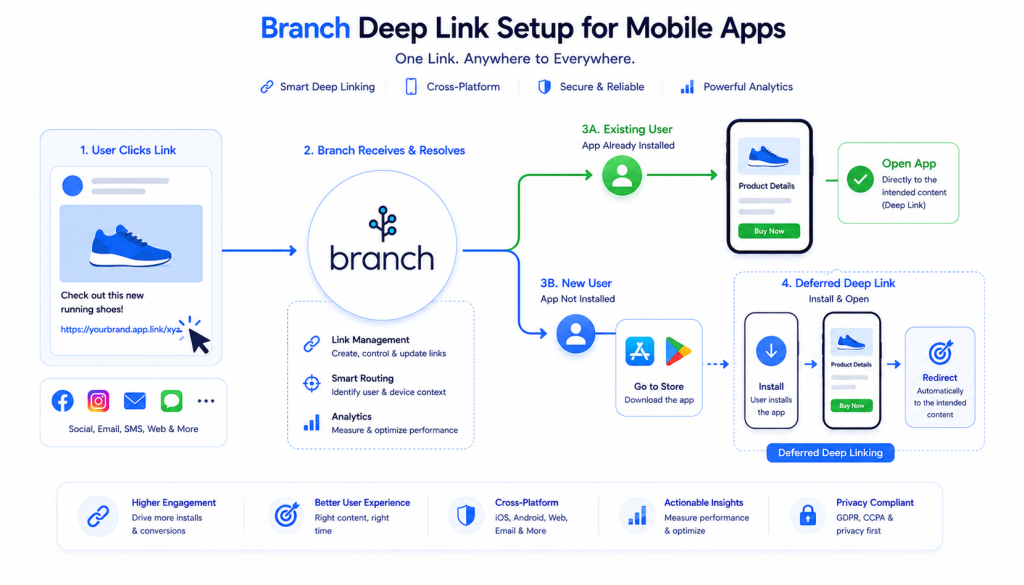
Branch is a linking and measurement platform for mobile. Its links open a specific screen in your app, send users who do not have the app to the store, and then deliver the original link data after install. That last part is deferred deep linking.Branch Pricing
Branch’s pricing page lists three plans: Basics, Essentials and Enterprise. It offers a free trial on Basics, does not publish prices, and does not list a permanent free tier, so older claims that Branch is freemium are not backed by the current page. Ask for current terms before you plan around it. Branch’s documentation also notes that deep linking requires its Engagement product.Branch or AppsFlyer OneLink
If AppsFlyer already handles your attribution, its OneLink feature may cover your deep linking needs, as described in the AppsFlyer setup guide. Branch is worth considering when linking and web-to-app journeys are your main requirement. For the wider vendor picture, see AppsFlyer vs Adjust.Step 1: Configure Your App in the Branch Dashboard
Everything on the device must match what the dashboard says, so start there. According to Branch’s iOS integration guide, in the current dashboard you set your iOS URI scheme and URL under Link Routing Rules, then Mobile Routing, enable Universal Links, enter your Apple Team ID as the App Prefix and add your bundle IDs. Older accounts use the App Settings page for the same fields. Confirm that the bundle identifier in Xcode matches the one in the dashboard.Your account also has a link domain. By default it looks likexxxx.app.link, with an xxxx-alternate.app.link twin, and you can switch to a custom domain later. Note your domain now, because you will need it on both platforms.Step 2: iOS Setup
Install the SDK
With Swift Package Manager, add theios-branch-sdk-spm package from Branch in Xcode. With CocoaPods, the pod is named BranchSDK for SDK 2.0.0 and later, not Branch as older posts show:
pod 'BranchSDK'Set Up Associated Domains
In Xcode, open Signing and Capabilities and add the Associated Domains capability. Use this format for each entry, replacing xxxx with your assigned subdomain prefix:applinks:xxxx.app.link
applinks:xxxx-alternate.app.link
applinks:xxxx.test-app.link
applinks:xxxx-alternate.test-app.linktest-app.link entries matter only if you use a test key. If you have a custom link domain, Branch’s Universal Links guide says to include your old domain, its alternate domain and your new domain.Add Branch Keys to Info.plist
Thebranch_key entry is a dictionary with a live key and an optional test key, not a single string. Add your link domains and your URI scheme too:
<key>branch_key</key>
<dict>
    <key>live</key>
    <string>key_live_YOUR_KEY</string>
    <key>test</key>
    <string>key_test_YOUR_KEY</string>
</dict>
<key>branch_universal_link_domains</key>
<array>
    <string>xxxx.app.link</string>
    <string>xxxx-alternate.app.link</string>
</array>
<key>CFBundleURLTypes</key>
<array>
    <dict>
        <key>CFBundleURLSchemes</key>
        <array>
            <string>yourapp</string>
        </array>
        <key>CFBundleURLName</key>
        <string>com.yourcompany.yourapp</string>
    </dict>
</array>
Initialize the Session
Do not putinitSession inside a SwiftUI App initializer, as older posts do. Branch’s guide describes this structure for SwiftUI apps: an AppDelegate that calls initSession, a SceneDelegate that forwards user activities and URL contexts to BranchScene.shared(), and @UIApplicationDelegateAdaptor in your App file. Follow the exact scene code in Branch’s guide, including its cold-start handling, because it is easy to get subtly wrong. The core call is simple:
func application(_ application: UIApplication,
                 didFinishLaunchingWithOptions launchOptions: [UIApplication.LaunchOptionsKey: Any]?) -> Bool {
    Branch.getInstance().initSession(launchOptions: launchOptions) { params, error in
        // params holds the deep link data, including deferred links after install
    }
    return true
}open url to its handler and universal links to continue(userActivity).Step 3: Android Setup
Add the Dependency and Manifest Entries
Branch’s Android integration guide lists the libraryio.branch.sdk.android:library, at version 5.8.0 in its example, and says to check for the latest version.
implementation 'io.branch.sdk.android:library:5.8.0'<meta-data android:name="io.branch.sdk.BranchKey" android:value="key_live_YOUR_KEY" />
<meta-data android:name="io.branch.sdk.BranchKey.test" android:value="key_test_YOUR_KEY" />
<meta-data android:name="io.branch.sdk.TestMode" android:value="false" />Add App Links and the URI Scheme
Put the App Links filter on the activity that should open from link clicks, as its own separate intent filter. Branch’s App Links guide shows one data element per domain:<intent-filter android:autoVerify="true">
<action android:name="android.intent.action.VIEW" />
<category android:name="android.intent.category.DEFAULT" />
<category android:name="android.intent.category.BROWSABLE" />
<data android:scheme="https" android:host="xxxx.app.link" />
<data android:scheme="https" android:host="xxxx-alternate.app.link" />
<data android:scheme="https" android:host="xxxx.test-app.link" />
<data android:scheme="https" android:host="xxxx-alternate.test-app.link" />
</intent-filter>android:launchMode="singleTask". If you use a custom domain, add its data element as well. Android verifies every host in the filter, and if one fails, none of the patterns are verified.Enable App Links in the Branch dashboard under the Android configuration and paste your SHA256 certificate fingerprint. For testing you can add the debug and production fingerprints separated by a comma, but make sure the release fingerprint is present before you ship. Every domain in your manifest must serve a Digital Asset Links file at /.well-known/assetlinks.json. For your own custom domain, confirm in Branch’s documentation or with Branch support exactly who serves that file, instead of assuming.Initialize the Session
Create an Application class that enables logging for debug builds and gets the Branch instance:class MyApplication : Application() {
override fun onCreate() {
super.onCreate()
Branch.enableLogging() // debug builds only
Branch.getAutoInstance(this)
}
}onStart. Branch warns that using onCreate or onResume causes unintended behavior.
override fun onStart() {
    super.onStart()
    Branch.sessionBuilder(this)
        .withCallback { branchUniversalObject, linkProperties, error ->
            if (error != null) {
                Log.e("Branch", error.message)
            } else {
                // read the link data from branchUniversalObject and linkProperties
            }
        }
        .withData(this.intent?.data)
        .init()
}onNewIntent, call setIntent(intent), and if the intent carries the branch_force_new_session extra, build a new session with a callback and call reInit(). Branch’s guide shows the exact code.Step 4: Create and Test Links
Create a link in the Branch dashboard, add the key-value data your app should read, such as a screen name and a product ID, and set the fallback behavior. Your app reads those values in the session callback on both platforms. Use your own data keys, and keep them consistent between the link and the code that parses them.Test Direct Deep Links
Branch’s testing guidance has several practical rules:- Do not test Universal Links by typing the link into Safari’s address bar, because Apple blocks that path. Use the Notes app or Messages.
- iOS only fetches the apple-app-site-association file on a fresh install or an App Store update, so delete and reinstall after changes.
- Do not wrap Branch links in a click-tracking or redirect link, because they must stand alone.
- On Android, make sure your browser is not the default handler for the link domain, and keep all link domains publicly reachable.
- App Links work only on Android 6 and later.
Test Deferred Deep Links
Branch documents this flow on its Android testing page. Create a link in the dashboard, remove the app from the test device and reset the advertising ID, reinstall the build, paste the link into another app and tap it. The app should open and route to the right screen. On Android you can also callIntegrationValidator.validate in onStart to check your keys, package name, URI schemes and link domain against the dashboard, then remove it for production builds.Step 5: Track Events and Revenue
Use a standard purchase event for money. Branch states that revenue is only aggregated in reporting when it is tracked on a purchase event, and that commerce metadata cannot be attached to custom events. Older posts that log a custom event named “purchase” with revenue as a text property will not produce the revenue reports you expect.// iOS
let buo = BranchUniversalObject()
buo.canonicalIdentifier = "item/12345"
let event = BranchEvent.standardEvent(.purchase)
event.contentItems = [buo]
event.transactionID = "order_12345"
event.currency = .USD
event.revenue = 29.99
event.logEvent()// Android
val buo = BranchUniversalObject()
.setCanonicalIdentifier("item/12345")
BranchEvent(BRANCH_STANDARD_EVENT.PURCHASE)
.setTransactionID("order_12345")
.setCurrency(CurrencyType.USD)
.setRevenue(29.99)
.addContentItems(buo)
.logEvent(applicationContext)Common Branch Deep Links Setup Mistakes
- Missing the alternate domain. Add both the main and alternate domain to Associated Domains and to the Android intent filter.
- Wrong or missing SHA256 fingerprint. A debug-only fingerprint breaks App Links for release builds.
- Initializing in the wrong lifecycle method. On Android use
onStart, and handleonNewIntentfor links that arrive while the app is open. - Using a single string for branch_key. The current format is a dictionary with live and test keys.
- Testing only direct links. Always run the uninstall, click, reinstall flow too.
- Shipping test mode. Keep the test key and test mode out of release builds.
- Logging revenue as a custom event. Use the standard purchase event.