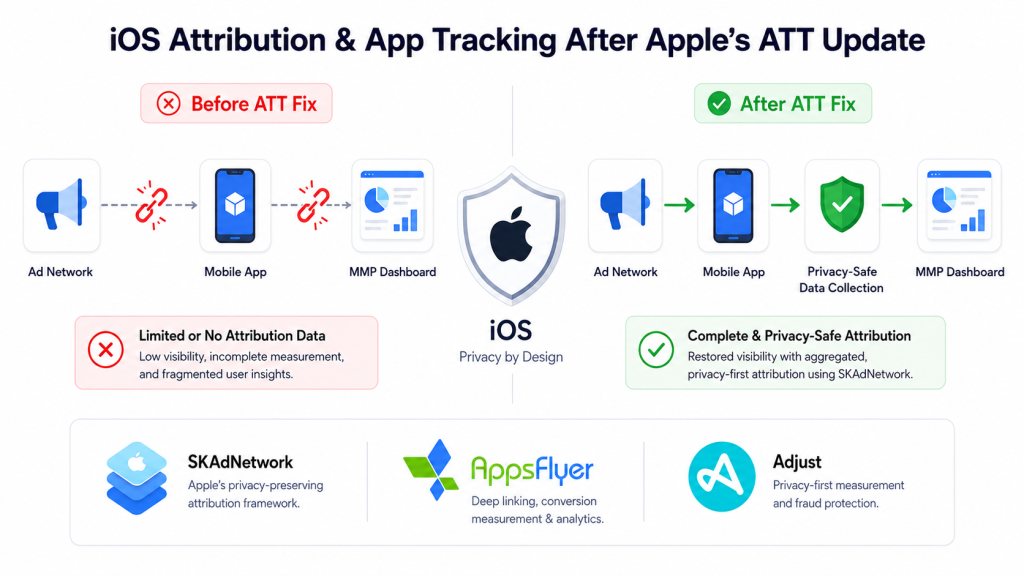
If your iOS attribution is broken after Apple’s App Tracking Transparency (ATT) update, this guide explains exactly why. It gives you a step-by-step fix – covering SKAdNetwork configuration, MMP setup, conversion value schemas, and probabilistic attribution.
The short answer: broken iOS attribution after ATT is fixable. But it requires configuring multiple systems correctly – your MMP, SKAdNetwork, and your campaign structure – not just flipping a switch.
Table of Contents
ToggleIn This Guide:
- Why iOS Attribution Broke After ATT
- What “Unattributed” Actually Means
- Step 1 — Audit Your Current Setup
- Step 2 — Configure SKAdNetwork Correctly
- Step 3 — Set Up Conversion Value Schema
- Step 4 — Fix Your MMP Configuration
- Step 5 — Enable Probabilistic Attribution
- Step 6 — Validate Your Setup
- FAQ
Why iOS Attribution Broke After ATT
Before iOS 14, mobile attribution worked through the IDFA (Identifier for Advertisers) — a unique device identifier that allowed MMPs like AppsFlyer and Adjust to match an ad click to an app install with near-perfect accuracy.
In April 2021, Apple introduced App Tracking Transparency (ATT) — a framework that requires apps to ask users for explicit permission before accessing their IDFA. The result was immediate and dramatic: opt-in rates averaged 25–40%, meaning 60–75% of iOS users became essentially invisible to traditional attribution methods.
For most apps, this meant:
- Install numbers dropped without explanation
- 50–70% of iOS installs started showing as “organic” or “unattributed.”
- Campaign ROAS calculations became unreliable
- Ad network reporting stopped matching MMP data
The problem was not that attribution became impossible. The problem was that most apps were not prepared for the new attribution framework Apple had already built: SKAdNetwork.
What “Unattributed” Actually Means
When your MMP shows an install as “unattributed” or “organic,” it means one of three things:
1. The user did not grant ATT permission — No IDFA available, and your probabilistic attribution is not configured or is failing.
2. SKAdNetwork is not configured — Apple’s privacy-preserving attribution framework is not set up, so iOS is not sending any attribution signals at all.
3. Your MMP postback setup is broken — SKAdNetwork is sending signals, but your MMP is not receiving or processing them correctly.
Each of these has a different fix. The steps below address all three.
Step 1 — Audit Your Current Setup
Before fixing anything, understand exactly what is broken. Check these four things:
1.1 — Check your ATT opt-in rate. In your MMP dashboard, look at the percentage of iOS installs with IDFA available. If it is below 30%, you have a low opt-in rate, which is normal but means you need SKAdNetwork and probabilistic attribution working correctly.
1.2 — Check your SKAdNetwork status in AppsFlyer: go to Configuration → SKAdNetwork and check if SKAN is enabled and your conversion value schema is configured. In Adjust: go to AppView → Your App → SKAdNetwork and verify SKAN is active.
1.3 — Check your unattributed install rate. If more than 20% of your paid iOS installs are showing as unattributed or organic, your attribution setup needs fixing.
1.4 — Check postback delivery. In your MMP, verify that SKAdNetwork postbacks are being received. If the postback count is zero or very low, your setup is broken at the network level.
Step 2 — Configure SKAdNetwork Correctly
SKAdNetwork is Apple’s privacy-preserving attribution framework. For full technical details, see Apple’s official SKAdNetwork documentation. It does not use IDFA – instead, it sends anonymized, aggregated postbacks directly from iOS to your MMP.
2.1 — Register your app with SKAdNetwork. Your app must be registered with Apple for SKAdNetwork. This is done through your MMP — AppsFlyer and Adjust, which both handle this automatically when you enable SKAN in their dashboard.
2.2 — Add ad network IDs to your Info.plist Every ad network you run campaigns on must have its SKAdNetwork ID listed in your app’s Info.plist file. If a network’s ID is missing, its campaigns will not be attributed through SKAN.
Check your current Info.plist and compare it against the SKAdNetwork ID lists provided by each of your ad networks (Meta, Google, TikTok, AppLovin, etc.). Most networks publish their current SKAN IDs in their developer documentation.
2.3 — Enable SKAN 4.0. If your app supports iOS 16.1+, upgrade to SKAN 4.0. It provides three postback windows instead of one, giving you significantly more attribution data over time. Both AppsFlyer and Adjust support SKAN 4.0 configuration.
Step 3 — Set Up Your Conversion Value Schema
This is the most misunderstood part of iOS attribution — and the most important.
What are conversion values? SKAdNetwork uses a 6-bit number (0–63) to report what happened after an install. You define what each value means. Without a properly designed schema, you get almost no useful post-install data.
How to design your schema:
Map your conversion values to meaningful user actions in the first 24–72 hours after install. A basic schema for a subscription app might look like this:
| Value | Meaning |
|---|---|
| 0 | Install only — no action |
| 1 | Completed onboarding |
| 2 | Started free trial |
| 3 | Viewed pricing page |
| 4 | Initiated purchase |
| 5 | Completed purchase — low value |
| 6 | Completed purchase — mid value |
| 7 | Completed purchase — high value |
Important rules:
- Values must be set within the first 24 hours after install (configurable up to 72 hours)
- Once a higher value is set, it cannot go back to a lower value
- Design your schema around your most important early user actions
In AppsFlyer, configure this under Configuration → SKAdNetwork → Conversion Value Mapping. In Adjust, configure this under AppView → SKAdNetwork → Conversion Values.
Step 4 — Fix Your MMP Configuration
Even with SKAdNetwork correctly set up, your MMP configuration can cause attribution failures.
4.1 — Verify your SDK version. Make sure you are running the latest SDK version for your MMP. AppsFlyer and Adjust both regularly release updates with SKAN improvements. Outdated SDKs often have known attribution bugs.
4.2 — Check ATT prompt implementation. Your app must call the ATT prompt before initializing your MMP SDK — or at the same time. If the MMP SDK initializes before the ATT prompt is shown, IDFA will not be captured even when users grant permission.
The correct order:
1. App launches
2. ATT prompt shown to user
3. User grants or denies permission
4. MMP SDK initializes with IDFA status
4.3 — Configure postback windows. In your MMP, set your postback window to match your conversion value timer. If you are using a 24-hour conversion window, make sure your MMP postback window is aligned.
4.4 — Verify ad network integrations. Each ad network must have an active integration in your MMP with postbacks correctly configured. Go through each network you are running campaigns on and verify that install and in-app event postbacks are enabled.
Step 5 — Enable Probabilistic Attribution
For users who do not grant ATT permission (no IDFA available), probabilistic attribution is your fallback. It uses non-personal signals — device type, OS version, IP address, timestamp — to statistically match installs to campaigns.
In AppsFlyer: Probabilistic attribution is enabled by default. Check that it is active under Configuration → Integrated Partners → [Your Ad Network] → Attribution.
In Adjust: Probabilistic attribution is called “Device fingerprinting” and must be enabled in your dashboard settings.
Important: Probabilistic attribution is less accurate than deterministic attribution — expect 60–80% match rates depending on your traffic. It is not a perfect solution, but it significantly reduces unattributed installs.
Step 6 — Validate Your Setup
After making all the above changes, validate everything before launching campaigns.
6.1 — Test with a real device. Use a physical iOS device (not a simulator) to test the full install flow. Check that:
- ATT prompt appears correctly
- IDFA is captured when permission is granted
- The install is attributed in your MMP dashboard
- Conversion values are firing correctly
6.2 — Use your MMP’s testing tools. Both AppsFlyer and Adjust have built-in testing tools:
- AppsFlyer: SDK Integration Tester
- Adjust: Testing Console
Use these to verify that events are firing and attribution is working before running live campaigns.
6.3 — Monitor postback delivery. After launching, monitor your SKAdNetwork postback delivery rate in your MMP. You should start seeing postbacks within 24–72 hours of installs occurring. If the postback count is zero after 72 hours, your SKAN setup is still broken.
6.4 — Compare MMP data with ad network reporting. Run a side-by-side comparison of your MMP install numbers against each ad network’s reported installs. A variance of less than 20% is acceptable. Higher variance indicates ongoing attribution issues.
How Long Does the Fix Take?
| Task | Time Required |
|---|---|
| SKAdNetwork audit and configuration | 2–4 hours |
| Conversion value schema design | 2–8 hours |
| SDK update and ATT prompt fix | 1–3 days (requires app release) |
| MMP postback configuration | 1–2 hours |
| Testing and validation | 1–2 days |
| Total | 1–2 weeks |
Note: Any changes that require an app update (SDK version, Info.plist, ATT prompt order) need to go through the App Store review process — plan for 1–3 days of review time.
Common Mistakes to Avoid
Mistake 1 — Showing the ATT prompt too early. Showing the ATT prompt immediately on first launch — before users understand the value of your app — results in low opt-in rates. Show it at a moment of high engagement: after onboarding completion, after the first key action, or when the user is clearly engaged.
Mistake 2 — Using a generic conversion value schema. Copying a template conversion value schema without thinking about your specific app’s key events is one of the most common iOS attribution mistakes. Your schema should reflect your actual user journey and what matters most to your business.
Mistake 3 — Not updating Info.plist when adding new ad networks. Every time you add a new ad network to your campaigns, their SKAdNetwork ID must be added to your Info.plist and a new app version released. Missing this means zero SKAN attribution from that network.
Mistake 4 — Ignoring SKAN 4.0. Many apps are still running SKAN 3.0 logic on iOS 16.1+ devices, missing the additional postback windows and coarse conversion values that SKAN 4.0 provides.
FAQ
Why are my iOS installs showing as unattributed even after fixing SKAdNetwork? The most common reason is that your Info.plist is missing SKAdNetwork IDs for some of your ad networks. Check each network you are running campaigns on and verify their IDs are in your Info.plist.
How long does it take for SKAdNetwork postbacks to arrive? SKAdNetwork postbacks arrive 24–72 hours after the conversion window closes. If you are using a 24-hour conversion window, expect postbacks 24–48 hours after install.
Can I use both SKAdNetwork and probabilistic attribution together? Yes — and you should. They work together. SKAdNetwork handles attribution for all iOS installs (with or without IDFA). Probabilistic attribution provides additional matching for users without IDFA. Your MMP combines both signals.
What opt-in rate should I expect for ATT? Industry average opt-in rates are 25–40%. Apps with strong value propositions and well-timed ATT prompts can achieve 50–60%. Gaming apps typically see lower rates (15–25%). Finance and health apps often see higher rates (40–60%).
My MMP shows zero SKAdNetwork postbacks. What is wrong? Zero postbacks usually means one of three things: SKAN is not enabled in your MMP, your ad networks’ SKAdNetwork IDs are missing from Info.plist, or your conversion value timer has not expired yet. Start by checking SKAN status in your MMP dashboard.