AppsFlyer Google Ads Conversion Import: 3 Proven Checks to Fix It
Table of Contents
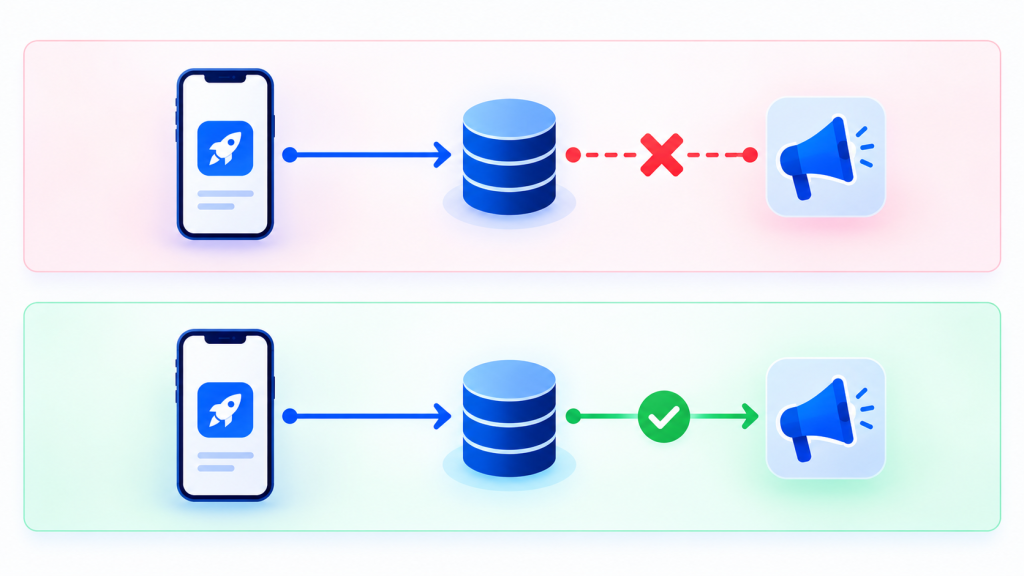
ToggleA broken AppsFlyer Google Ads conversion import looks the same almost every time. The SDK is live on iOS and Android, postbacks fire, the events are visible inside the AppsFlyer dashboard, and yet nothing shows up in Google Ads as an importable conversion action. The campaign team cannot optimize on installs or in-app events, even though every screen you open says the integration is fine.
The cause is rarely the SDK. It is usually one of three links in a chain that runs from AppsFlyer to Google Ads, and each link can fail without an error message. This guide walks through how the chain works, the three checks that find the break, and the secondary causes worth ruling out afterwards. Everything below follows AppsFlyer’s and Google’s documentation as checked in October 2026.
How the AppsFlyer Google Ads Conversion Import Works
It helps to see the whole path before debugging one piece of it. According to AppsFlyer’s Google Ads integration guide for advertisers, the setup has four parts:
- Create a Link ID in Google Ads. This needs Google administrative access. In Google Ads you open Tools and settings, then Data manager, choose Connect Product, pick Third-party app analytics and create the link ID for your provider, platform and app.
- Enable the integration in AppsFlyer. Under Collaborate, Partner Integrations, Marketplace, you find Google Ads, turn on Activate partner and paste the Link ID.
- Import conversions in Google Ads. You set first_open as a conversion event for each app, and optionally session_start for re-engagements and any in-app event you want to measure.
- Map in-app events in AppsFlyer. In the integration’s In-app event postbacks section you decide which AppsFlyer events are sent to Google Ads and under which partner event name.
A failure in any of these four leaves the others looking healthy. That is why the AppsFlyer dashboard can show perfect event volume while Google Ads shows nothing. The dashboard only proves that events were recorded, not that they were forwarded, received or imported.
Symptoms of a Broken Conversion Import
- In-app events exist in AppsFlyer but are missing from the conversion actions list in Google Ads.
- The link in Google Ads shows a status of Unverified long after setup.
- Installs import, but purchases or registrations never do.
- Events appeared once during testing and then stopped.
- Google Ads reports far fewer conversions than AppsFlyer, or none at all, for an event you mapped.
Match what you see to the checks below. Start with check one, because it is the cheapest to verify and the most often wrong.
Check 1: The Link ID and the Google Ads Account
The Link ID is the handshake between the two platforms, so if it is wrong or points to the wrong place, nothing downstream can work.
Confirm the Link ID matches on both sides
AppsFlyer’s Google Ads FAQ says it plainly: ensure the Link ID in AppsFlyer matches the Link ID in Google Ads. Copy it from Google Ads again and compare it character by character with the value saved in the AppsFlyer integration. A common cause is a Link ID created for a different app or platform, since Google requires a separate link ID for each app. Google also describes the status as Unverified until the ID is added to the provider account and conversion data starts flowing.
Confirm you are in the account that actually runs the ads
This is the check that catches the most expensive mistakes. The link must live in the Google Ads account, or under the manager account, that your campaigns run in. If your agency or media buyer works from a different account than the one where you created the link, you can have a perfectly healthy link that serves a different account than the one you are bidding in.
AppsFlyer explains the permitted structures: one Link ID can be shared across multiple Google Ads accounts. With a manager account, the manager should import first_open for its linked sub-accounts. For a sub-account, the manager account must share the Link ID, and the sub-account must also import first_open directly. Google’s guide to linking a third-party app analytics provider covers sharing a link by entering the other account’s customer ID. Agencies also need their own Google Ads accounts separate from the advertiser’s, according to AppsFlyer.
Check any Firebase or GA4 link separately
AppsFlyer’s documented route is the Link ID, and its setup guide does not list a Firebase or GA4 link as a required step. But many apps also have Firebase or GA4 linked to Google Ads for Google’s own signals. If yours does, confirm that link points at the same account that runs your campaigns. Otherwise you can end up reading conversion data in one account while spending in another, and nothing flags the difference.
If you use Google Ads postback partners
AppsFlyer’s Google Ads postback partner configuration requires your Google Ads Customer ID, entered without hyphens, and you can add several separated by commas. Google Ads attribution must also stay enabled in AppsFlyer, since turning it off stops postbacks to these partners too.
Check 2: In-App Event Postbacks in AppsFlyer
The Link ID gets you installs. In-app events need their own configuration, and this is where most partial failures live.
- Turn on In-app event postbacks. In the integration tab, enable it and use Add event for each event you want Google Ads to receive.
- Set the audience correctly. The FAQ says to select All media sources, including organic under For users from, so Google Ads receives the event data. Limiting it to non-organic or to a single source is a quiet way to send nothing for most users.
- Map the right names. Each row pairs an AppsFlyer event with a partner event name. A typo or a renamed event on either side breaks the pairing. If you changed the partner event identifier or the AppsFlyer event name, re-import the events in Google Ads afterwards.
- Check session_start. When mapping is first enabled, af_app_opened is mapped to session_start automatically. If it is missing, add it by hand.
Then confirm the event actually fires. Trigger each mapped event yourself in a test build. The mobile app attribution debugger can check an event payload against documented rules before you spend time re-testing blind, and the mobile attribution audit guide lists the other event-level problems worth ruling out.
Check 3: Import the Conversions in Google Ads
Sending events is not the same as importing them. Google Ads will not use an event as a conversion action until you import it, and this step needs Google administrative access. A surprising number of setups stop here because the person who configured AppsFlyer never had that access.
- Import first_open first. AppsFlyer lists it as required for install measurement, for each app. If it was removed, the FAQ says to contact Google support.
- Import session_start for re-engagement. Only if you plan to measure re-engagements.
- Import every in-app event you want to optimize on. In Google Ads, go to Tools, then Conversions, check the Conversion action summary and import the relevant events.
- Trigger each new conversion at least once. AppsFlyer says each new conversion must be triggered once by launching the app and performing the mapped event. On iOS, testing needs IDFA collection, which means the tester must have allowed tracking.
- Wait for the queue. New conversions can take up to 6 hours to be added to the queue before you can import them, so an event that fired ten minutes ago will not be there yet.
Other Causes of a Failing AppsFlyer Google Ads Conversion Import
If the three checks above all pass, look at these.
- Activate partner is off. AppsFlyer says it must stay on for as long as you work with the partner. A switch that was turned off during an earlier cleanup is easy to forget.
- iOS prerequisites. The guide asks for AppsFlyer iOS SDK v6.17.9 or higher and Firebase iOS v11.14.0 or higher, or Google’s standalone ODM SDK. It also asks you to send IDFV with every app open and in-app event, and the IP address with app open events. IP masking may stop the modeled matching from working. Android needs no SDK update. If your iOS numbers are the bigger problem, the iOS attribution fix guide is the place to start.
- Advanced data sharing. When it is on, Google receives device-level identifiers for all devices. When it is off, only devices with an IDFA are sent and attributed. That alone can make iOS volume look far lower than expected.
- Modeled matching limits. AppsFlyer notes that its modeled matching on iOS (ICM) is not supported in the EU, UK or Switzerland, and does not support re-engagements.
- Restricted data. With Aggregated Advanced Privacy on, Google-attributed data appears as restricted.
- Permissions. If your Google Ads representative needs to see the integration, they have to be added to Google’s AppsFlyer partner account through Google’s form, and then given permissions in AppsFlyer.
Why Numbers Still Differ After the Import Works
Once events import, expect AppsFlyer and Google Ads to disagree a little. The AppsFlyer FAQ lists the reasons, and none of them is a bug:
- Google Ads records conversions at click time, while AppsFlyer records installs at app launch time.
- Google Ads uses a 30 day window, and AppsFlyer defaults to 30 days but lets you change it.
- Google Ads is a self-reporting network and credits every install after a Google engagement in the window. AppsFlyer credits the last click and treats earlier engagements as assists.
- AppsFlyer may remove installs under its validation rules, while Google receives all the data.
- Google Ads can list installs, purchases and subscriptions together, so compare install events only.
The point is to watch for a stable gap over time, not an exact match. For the wider concept, read what mobile attribution is, and if you are still setting things up from scratch, the AppsFlyer setup guide covers the SDK side.
Quick Checklist to Fix It
- The Link ID in AppsFlyer matches the Link ID in Google Ads, for the right app and platform.
- The link lives in the account that runs your campaigns, or is shared to it, and any Firebase or GA4 link points at the same account.
- Activate partner is on in AppsFlyer.
- In-app event postbacks are on, and each event is set to All media sources, including organic.
- Event names match on both sides.
- first_open and each in-app event are imported in Google Ads.
- Each mapped event has been triggered at least once in a test build.
- You have waited at least 6 hours before concluding that it failed.
When to Get Help
Most cases of a failing AppsFlyer Google Ads conversion import come down to one of the checks above, and the fix is a setting rather than code. The slow part is usually access: the person who owns AppsFlyer is not the person who owns Google Ads. If that is your situation, the fastest route is for the Google Ads owner to share the Link ID, a screenshot of the conversion actions list and the linked accounts view, and for you to share an export of the events you expect to see.
FAQ
Why are my AppsFlyer events not showing in Google Ads as conversions?
The three most common causes are a Link ID that does not match between AppsFlyer and Google Ads or sits in the wrong account, in-app event postbacks that are off or limited to the wrong audience, and conversions that were never imported in Google Ads. The AppsFlyer dashboard only proves that events were recorded, not that they were forwarded and imported.
What is the Link ID and where do I create it?
The Link ID connects your app in Google Ads to AppsFlyer. In Google Ads you open Tools and settings, then Data manager, choose Connect Product, select Third-party app analytics and create the link ID for AppsFlyer, your platform and your app. You then paste it into the Google Ads integration in AppsFlyer. You need a separate link ID for each app.
How long does it take for AppsFlyer conversions to appear in Google Ads?
AppsFlyer states that new conversions can take up to 6 hours to be added to the queue before you can import them. The event must also be triggered at least once, by launching the app and performing the mapped event. Wait at least 6 hours before concluding that the import failed.
Do I need to link Firebase or GA4 for the AppsFlyer Google Ads conversion import?
AppsFlyer’s documented setup uses the Link ID and does not list a Firebase or GA4 link as a required step. If your app also has Firebase or GA4 linked to Google Ads, check that it points at the same account that runs your campaigns so you are not reading data in one account while spending in another.
Which events should I import first?
Import first_open for each app, which AppsFlyer lists as required for install measurement. Add session_start only if you want to measure re-engagements, then import each in-app event you want to optimize on, such as registrations or purchases.
Why do AppsFlyer and Google Ads show different numbers after the import works?
Google Ads records conversions at click time and AppsFlyer records installs at launch time. Google Ads credits every install after a Google engagement in the window as a self-reporting network, while AppsFlyer credits the last click and treats earlier engagements as assists. AppsFlyer may also remove some installs under its validation rules. A stable gap over time is normal.
Do I need to enter my Google Ads Customer ID in AppsFlyer?
For the main integration the Link ID is what connects the two platforms. For Google Ads postback partners, AppsFlyer asks for your Google Ads Customer ID entered without hyphens, and you can add several separated by commas.
If your AppsFlyer events fire but never become usable Google Ads conversions, send your setup description to contact@alfahadhridoy.com and I will reply by email with what to check first.