Google Data Manager API: 6 Costly Offline Import Mistakes
Table of Contents
ToggleFor the full field by field guide, with old and new request examples, request status and the CUSTOMER_NOT_ALLOWLISTED_FOR_THIS_FEATURE fix, see the Google Ads Data Manager API migration guide.
The Google Data Manager API is now the route Google recommends for offline conversion imports and enhanced conversions for leads. It is also already past the date when things changed: since 15 June 2026, Google’s own deprecations page says the Google Ads API restricts offline conversion imports for developer tokens without recent uploads. If you send conversions from a CRM, form tool or booking system into Google Ads, this guide helps you work out which group you are in and what to check before you migrate.It is written for marketers, agencies and developers who run lead generation or CRM-to-Ads setups. It sticks to what Google has published, points out where Google’s own pages describe things differently, and marks clearly which parts are practical advice rather than documentation. Facts were checked in October 2026.The Short Version
- From 15 June 2026, developer tokens with no offline conversion upload requests in the window Google describes are restricted from offline conversion use of the Google Ads API, and their
UploadClickConversionscalls returnCUSTOMER_NOT_ALLOWLISTED_FOR_THIS_FEATURE. - Google’s guidance on its deprecations page is to migrate offline conversion workflows to the Data Manager API.
- The deprecations page calls this an access restriction and gives no removal date for the Google Ads API path. That is a reason to plan, not a reason to wait.
- Google says future features will be launched exclusively on the Data Manager API.
A Timeline of What Google Has Announced
These dates come from Google’s Google Ads API deprecations page, its help pages and its release notes:- 2 February 2026: new adopters of IP address and session attribute data in conversion imports are restricted from using those fields in the Google Ads API.
- 1 April 2026: Customer Match is restricted for developer tokens with no Customer Match requests between 1 October 2025 and 31 March 2026.
- April 2026: enhanced conversions for web and for leads are combined into a single on/off setting, and existing users are migrated automatically.
- 15 May 2026: the Google Ads Developer Blog publishes the announcement about offline click conversion import.
- 15 June 2026: the Google Ads API stops accepting new adopters of offline conversion imports, including enhanced conversions for leads.
- 9 September 2026: the deprecations page lists developer tokens as deprecated and sunset, in favor of Google Cloud projects.
- 14 October 2026: Google Ads API v26 is released and removes the field
enhanced_conversions_for_leads_enabled.
What Google Says Has Changed
Google’s announcement is on the Google Ads Developer Blog, dated 15 May 2026, and says that from 15 June 2026 the Google Ads API no longer accepts new adopters of offline conversion imports. Press coverage of that post reports that developers who had already adopted offline imports can keep importing through the Google Ads API while they integrate with the Data Manager API.The deprecations page gives the precise rule. Developer tokens with no offline conversion upload requests between 17 December 2025 and 15 June 2026 are restricted from offline conversion use of the API, andUploadClickConversions requests from them return CUSTOMER_NOT_ALLOWLISTED_FOR_THIS_FEATURE. It describes this as an access restriction, not a full sunset. It also notes that developer tokens have since been deprecated in favor of Google Cloud projects, but that the earlier access restriction remains in effect.Google’s offline conversion import help page says to use the Data Manager API for current and future offline conversions, and that tokens with no request from January through June 2026 will not be allowlisted for legacy access. Between the reporting of the blog post (December 2025 to May 2026), the deprecations page (17 December 2025 to 15 June 2026) and this help page (January to June 2026), the window is described three slightly different ways. Check your own usage rather than relying on any one date.What Changed for the Enhanced Conversions Setting
Two changes affect lead-based setups directly. Google’s help page for enhanced conversions for leads says enhanced conversions for web and for leads were combined into a single on/off setting from April 2026, with existing users migrated automatically. Then the v26 release notes list the removal of theenhanced_conversions_for_leads_enabled field in ConversionTrackingSetting as a breaking change. To read the new state, Google points developers to ConversionTrackingSetting.enablement_setting and effective_enablement_setting on Customer.conversion_tracking_setting, which use the new EnhancedConversionsConfig enum.If you or a developer wrote code that reads or sets the old field, that code needs attention when you move to v26.Which Group Are You In?
Most setups fall into one of three groups:- Tokens with recent offline uploads. You can keep working while you migrate, but treat that as a bridge, not a promise.
- Tokens without recent offline uploads. Offline use is restricted, and
UploadClickConversionsreturns the allowlist error above. - Setups already on the Data Manager API. Your tool or agency may already send conversions this way.
How to Check Which Group You Are In
This part is practical advice, not Google documentation. Work through it in order:- Find out who makes the upload calls. It might be a plugin, a form tool, a CRM connector, an agency script or your own code. The restriction depends on the calls that credential makes, so you need to know whose it is.
- Check usage for offline conversion upload requests. Look at the period Google describes, and remember that Google words that window three ways. Uploads across the whole period put you in the first group.
- Look for the allowlist error. If uploads are failing and the response contains
CUSTOMER_NOT_ALLOWLISTED_FOR_THIS_FEATURE, you are in the second group. - Ask your tool or agency. Ask whether they already send conversions through the Data Manager API, and if not, what their plan is.
- Write down what you find. Note the tool, the date of the last successful upload and the conversion actions involved. You will need this list to plan the migration.
What a Google Data Manager API Migration Involves
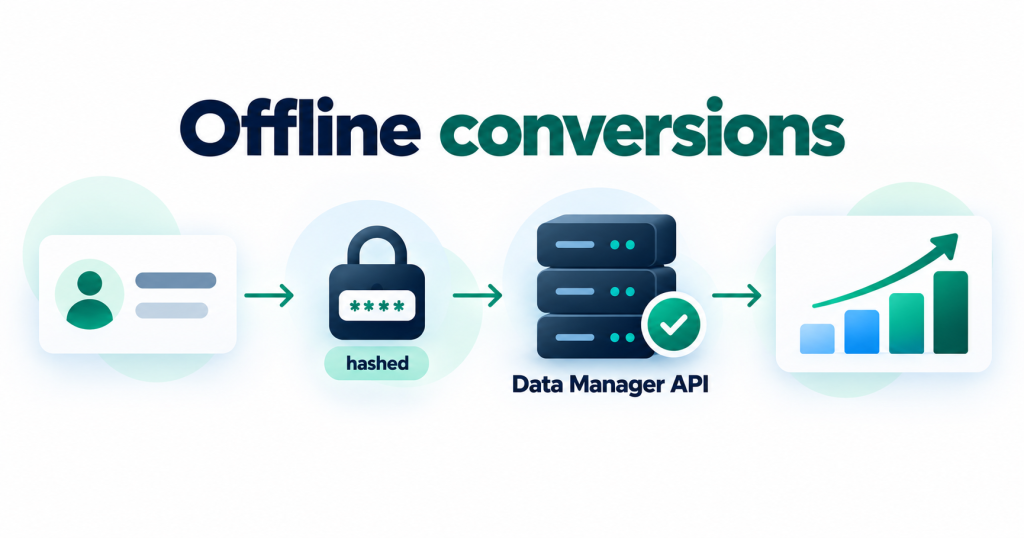
Google describes the Data Manager API as a unified ingestion API for data partners, agencies and advertisers, with Google Ads, Google Analytics, Display and Video 360, Campaign Manager 360, Search Ads 360 and Google Ad Manager shown as supported products. Its overview says future features will be launched exclusively on this platform. The offline conversions guide covers sending Google Ads offline conversions and enhanced conversions for leads. At a high level, a migration looks like this.1. Prepare the destination
A destination names the account that receives the events. TheoperatingAccount must own the conversion action, with account type Google Ads and a 10 digit account ID without hyphens. The productDestinationId is the conversion action ID, and the action must be the click upload type, shown in Google Ads as Website (Import from clicks).2. Build the events
Each event needseventTimestamp and eventSource, plus at least one identifier: an ad identifier (gclid, gbraid or wbraid), session attributes, user data or an IP address. transactionId, conversionValue and currency are optional but strongly useful. User data such as email and phone must be normalized and hashed with SHA-256 following Google’s formatting rules, with the encoding field showing whether you used hex or Base64.3. Test before you send
SetvalidateOnly to true to check the request. Google’s events.ingest reference says the request is validated but not executed, and only errors are returned. A request can carry up to 2,000 events.4. Send and read the status
Submit theevents:ingest request. The response returns a requestId, and requestStatus.retrieve returns a status per destination, such as SUCCESS, PROCESSING, FAILED or PARTIAL_SUCCESS, with error and warning counts by reason once processing finishes.5. Adjust later, with a matching transaction ID
Google’s guide to conversion adjustments says an event is treated as an adjustment when itstransactionId matches an existing conversion for the same conversion action and destination. Sending a new conversionValue and currency overwrites the recorded value without increasing the conversion count. The page does not describe a way to retract a conversion, so do not plan around one.Who Decides What: Marketers and Developers
This is advice rather than documentation, but a migration goes faster when both sides know their jobs.The marketer or account owner decides which events count as a conversion, what each is worth, which conversion action it belongs to and whether your consent records allow the data to be sent at all. They also decide how to treat overlap with conversions your website tag already reports.The developer or tool vendor captures and stores the click identifier, builds the events, normalizes and hashes user data, runs thevalidateOnly test and reads the status afterwards.A Worked Example: One Lead, From Click to Import
This is a generic example, not a Google reference, but it shows where setups usually fail.A visitor clicks a Google ad and lands on your enquiry form. The page captures the click identifier from the visit and stores it in a hidden field. When the form is submitted, your CRM creates a lead and saves the click identifier and a stable transaction ID with it.Weeks later, the lead becomes a customer. Your pipeline reads the CRM record and builds an event that carries the click identifier, the transaction ID, the time of the conversion and its value. If you include contact information, it is normalized and hashed first. You run the payload once withvalidateOnly set to true, fix anything that fails, and then send it for real. Afterwards, you read the request status to confirm it was processed.The step that breaks most often is the first one. If the click identifier was never stored when the lead came in, there is nothing to send when the sale closes, and no migration can fix that.Why “Still Works” Is Not the Same as Safe
If your imports run today, that is good news, but treat it as time to plan. Google says new capabilities will be launched exclusively on the Data Manager API, and its deprecations page tells you to migrate offline conversion workflows there. The deprecations page gives no end date for the Google Ads API path, so any specific shutdown date you read elsewhere is unconfirmed. The practical risk is a surprise: a restriction you did not expect, or a field removed in a new API version, like the one in v26. If your leads also arrive through chat, the same identity problem appears there, as covered in WhatsApp BSUID and CAPI mistakes.6 Mistakes to Avoid Before You Migrate
Run through this checklist against your own setup.1. Treating “still works” as “safe long term”
Plan the move while nothing is broken. A migration done calmly is cheaper than one done after an error.2. Not checking which group you are in
Look at your usage, the allowlist error and whether your tool or agency already uses the Data Manager API. Do not guess.3. Not capturing the click ID at lead time
Store the click identifier from the ad click with the lead when the form is submitted, so it is still available when the sale closes. Google’s enhanced conversions for leads page saysgclid is required if you are not using a tag to collect user-provided data. Retrofitting this later usually means losing the leads you already have.4. Weak transaction IDs
Give every conversion a stable transaction ID that your CRM keeps. Google uses it to deduplicate events from different sources within the same conversion action and to match an adjustment to the original conversion. IDs that change between systems make corrections painful.5. Mismatched conversion actions and double counting
Make sure the conversion action you send to is the one your campaigns optimize on. If a website tag reports the same event, use the same transaction ID, so Google can combine them instead of counting one sale twice. Google notes that for the first 14 days after a conversion action is created, value updates are disabled and new conversions are not used for bidding.6. Skipping consent and test steps
Normalize and hash user data as the guide requires, confirm your own consent records allow the data to be sent, and test withvalidateOnly and the request status before sending production data.Questions to Ask Your Tool Vendor or Agency
If someone else runs your uploads, these five questions give you a clear picture:- Do you send our offline conversions through the Google Ads API or the Data Manager API today?
- If it is still the Google Ads API, what is the plan and timeline to move?
- Which identifiers and user data fields do you send, and how do you hash them?
- Do you test with
validateOnlybefore changing production, and who reads the status afterwards? - How do you avoid counting the same sale twice if our website tag also reports it?