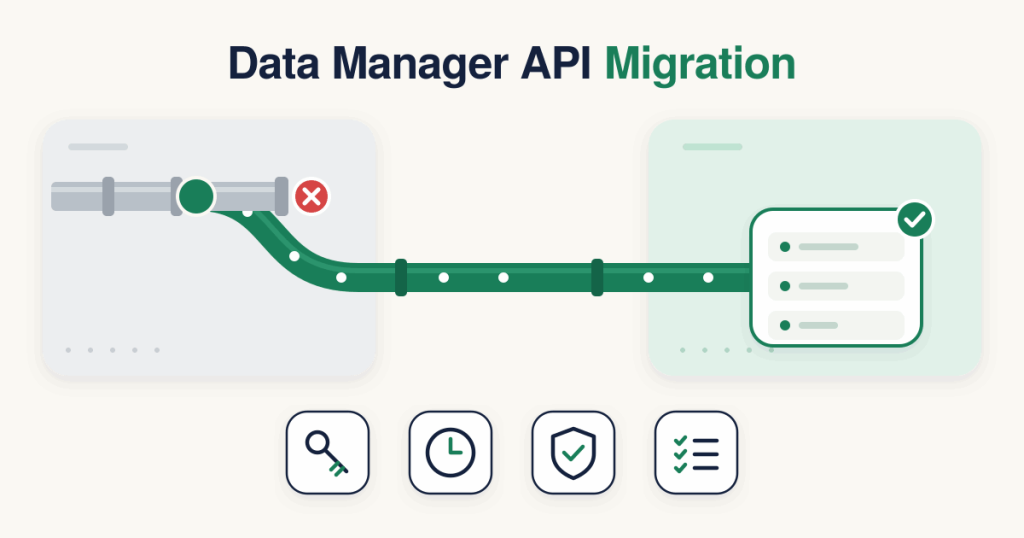
Google Ads Data Manager API Migration: 7 Critical Changes Before Your Offline Uploads Break
Google is moving offline conversion uploads to a new API, and the change is already breaking setups. The Google Ads Data Manager API migration replaces the old Google Ads API method
UploadClickConversions with the Data Manager API method
events:ingest. If a new integration of yours fails with
CUSTOMER_NOT_ALLOWLISTED_FOR_THIS_FEATURE, this is the reason.The people hit first are those setting up offline conversion import for the first time, agencies onboarding a new client, and integrations that paused their uploads for a few months. Everyone else still on
UploadClickConversions has the same move ahead of them.This Google Ads Data Manager API migration guide covers what changed, which fields move where, the behavior that now rejects whole requests, how to read request status, and the timing rules that drop conversions without an error. Every fact is taken from Google’s own documentation and linked where it is used.
Quick answer: what to do if you see CUSTOMER_NOT_ALLOWLISTED_FOR_THIS_FEATURE
- Stop changing the rows. This error is about access, not data, so no change to the payload fixes it.
- Enable the Data Manager API in a Google Cloud project and get an OAuth 2.0 token with the
https://www.googleapis.com/auth/datamanager scope, for a user or service account that can reach the Google Ads account. - Rewrite the request for
events:ingest: destinations with the numeric conversion action ID, an RFC 3339 eventTimestamp, encoding set, and consent on every event. - Test it with
validateOnly set to true, then send it in batches of 2,000 events or fewer. - Check the result with
requestStatus:retrieve about 30 minutes later, and resend only the records that failed.
What changed and why it matters now
Google’s
offline conversion upload guide sets the rule. Starting June 15, 2026,
UploadClickConversions requests fail with
CUSTOMER_NOT_ALLOWLISTED_FOR_THIS_FEATURE for developer tokens that sent no offline conversion upload requests between December 17, 2025 and June 15, 2026. Google’s instruction is to use the Data Manager API instead.The same guide says developer tokens were deprecated in favor of Google Cloud projects and were sunset on September 9, 2026, and that this access restriction still applies. The Data Manager API does not use a developer token at all, which is the first thing to plan in any Google Ads Data Manager API migration. Access comes from a Google Cloud project and an OAuth token.Enhanced conversions for leads follows the same path. Google Ads help says that
enhanced conversions for leads uploads are migrated to the Data Manager API starting June 15, 2026, and that the Data Manager API can be used for current and future offline conversion and enhanced conversions for leads uploads.
Who needs the Google Ads Data Manager API migration
| Situation | What happens | What to do |
|---|
| New offline conversion setup | A new developer token has no uploads in the December 17, 2025 to June 15, 2026 window, so UploadClickConversions fails. | Build on events:ingest from the start. |
| Agency onboarding a new client | A new integration or token hits the same error. | Set up the client on the Data Manager API. |
| Integration that paused uploads during the window | Uploads fail when they restart. | Migrate before restarting. |
| Integration still uploading on the old method | Not blocked by this rule, but developer tokens are already sunset. | Migrate on your own schedule, before you are forced to. |
| CSV upload users | Google labels click conversion file imports as legacy. | Plan the move to Data Manager (see the CSV section below). |
| Enhanced conversions for leads users | Uploads are being migrated to the Data Manager API. | Move uploads to Data Manager or the API. |
7 critical changes in the Google Ads Data Manager API migration
1. A new method: events:ingest
Uploads go to
https://datamanager.googleapis.com/v1/events:ingest. The request body carries
destinations and an
events list instead of
conversions.
2. Destinations and the numeric conversion action ID
The customer ID, the
login-customer-id header and the conversion action all move into
destinations. The Google Ads account goes in
operatingAccount with
accountType GOOGLE_ADS and
accountId. If you sign in through a manager account, add
loginAccount. The conversion action becomes
productDestinationId, and Google’s
field mapping page is clear that it takes the numeric ID, not the resource name. So
customers/123/conversionActions/456 becomes
456. To send to several conversion actions in one request, give each destination a
reference and list it in each event’s
destinationReferences.
3. Renamed and moved fields
Click IDs move into
adIdentifiers.
order_id becomes
transactionId. User identifiers move into
userData.userIdentifiers. The full list is in the mapping table below.
4. RFC 3339 time format
conversion_date_time written as
2026-06-01 14:30:00-04:00 becomes
eventTimestamp in RFC 3339:
2026-06-01T14:30:00-04:00. Note the
T between date and time, and keep the offset.
5. Encoding is required
The request has a new
encoding field,
HEX or
BASE64, which must match how your hashed user identifiers are written. Google marks it as required.
6. Fast fail instead of partial failure
partial_failure has no equivalent. Google’s mapping page calls it a fast fail model: one invalid field rejects the whole request, and nothing in it is processed. With the old method, good rows could go through while bad rows failed. Now a single bad row blocks the batch, so validating before you send matters far more than it used to.
7. Asynchronous request status, with no match rate
A successful call returns a
requestId, not per row results. You find out what happened later with
requestStatus:retrieve. For event uploads, Google’s
diagnostics guide reports record counts with error and warning counts, not a match rate.Before you rewrite anything by hand, you can
convert your old request with the free migration tool. It turns an old
UploadClickConversions request into an
events:ingest request and checks it against Google’s rules. Every check runs in your browser.
Old request vs new request
| Google Ads API (UploadClickConversions) | Data Manager API (events:ingest) |
|---|
conversions | events |
customer_id | destinations[].operatingAccount (accountType GOOGLE_ADS, accountId) |
developer-token header | No equivalent, not needed |
login-customer-id header | destinations[].loginAccount |
linked-customer-id header | destinations[].linkedAccount (partner links only) |
conversion_action (resource name) | productDestinationId (numeric ID); per event destinationReferences when using several |
gclid, gbraid, wbraid | adIdentifiers.gclid, adIdentifiers.gbraid, adIdentifiers.wbraid |
order_id | transactionId |
conversion_date_time | eventTimestamp (RFC 3339) |
conversion_value | conversionValue (currency units, not micros) |
currency_code | currency |
user_identifiers | userData.userIdentifiers |
hashed_email | emailAddress |
hashed_phone_number | phoneNumber |
address_info | address |
customer_type | userProperties.customerType |
user_ip_address | landingPageDeviceInfo.ipAddress |
session_attributes_encoded | adIdentifiers.sessionAttributes |
custom_variables (resource name) | customVariables with the plain variable name |
consent | consent (per event or for the whole request) |
| No equivalent | encoding (required), eventSource |
partial_failure, job_id, conversion_environment, external_attribution_data | No equivalent |
validate_only | validateOnly |
eventSource describes where the event came from. Its values are
WEB,
APP,
IN_STORE,
PHONE,
MESSAGE and
OTHER.
Before: a CRM deal sent with
UploadClickConversions (made up values).
POST https://googleads.googleapis.com/vXX/customers/1234567890:uploadClickConversions
developer-token: YOUR_DEVELOPER_TOKEN

{
  "conversions": [
    {
      "gclid": "EAIaIQobChMI_example_gclid",
      "conversionAction": "customers/1234567890/conversionActions/987654321",
      "conversionDateTime": "2026-06-01 14:30:00-04:00",
      "conversionValue": 149.50,
      "currencyCode": "USD",
      "orderId": "deal-48213-won",
      "userIdentifiers": [
        { "hashedEmail": "86e0b9e56c17cc4d12387e1949b85053fbe73bc3ce5a1188713a9d300cc6133d" }
      ],
      "consent": { "adUserData": "GRANTED", "adPersonalization": "GRANTED" }
    }
  ],
  "partialFailure": true
}
After: the same deal sent with
events:ingest.
POST https://datamanager.googleapis.com/v1/events:ingest
Authorization: Bearer YOUR_OAUTH_ACCESS_TOKEN

{
  "destinations": [
    {
      "operatingAccount": { "accountType": "GOOGLE_ADS", "accountId": "1234567890" },
      "productDestinationId": "987654321"
    }
  ],
  "encoding": "HEX",
  "events": [
    {
      "adIdentifiers": { "gclid": "EAIaIQobChMI_example_gclid" },
      "eventTimestamp": "2026-06-01T14:30:00-04:00",
      "transactionId": "deal-48213-won",
      "conversionValue": 149.50,
      "currency": "USD",
      "eventSource": "OTHER",
      "userData": {
        "userIdentifiers": [
          { "emailAddress": "86e0b9e56c17cc4d12387e1949b85053fbe73bc3ce5a1188713a9d300cc6133d" }
        ]
      },
      "consent": { "adUserData": "CONSENT_GRANTED", "adPersonalization": "CONSENT_GRANTED" }
    }
  ]
}
The email in both examples is
jane.doe@example.com, trimmed, lowercased and hashed with SHA-256 in hex. The consent values changed too:
GRANTED becomes
CONSENT_GRANTED.
Step by step migration
This is the order I follow for a Google Ads Data Manager API migration, from access to switching off the old path.
- Cloud project and access. Enable the Data Manager API in a Google Cloud project. Use an OAuth 2.0 token with the
https://www.googleapis.com/auth/datamanager scope, for a user or service account that has access to the Google Ads account. - Collect the numeric conversion action IDs. Take the last number of each resource name. Note which accounts are reached through a manager account, since those need
loginAccount. - Rewrite the payload. Map every field with the table above. Change the time to RFC 3339 with the offset, and keep values in currency units.
- Hash and set encoding. For email, trim and lowercase. For gmail.com and googlemail.com addresses, also remove dots and anything after a plus sign in the part before the @. Phone numbers go in E.164 with the plus sign. Hash with SHA-256 and set
encoding to match (HEX or BASE64). - Add consent. Send
adUserData and adPersonalization as CONSENT_GRANTED or CONSENT_DENIED, per event or for the whole request. - Validate first. Send with
validateOnly set to true. Nothing is uploaded, and the response shows any error. - Send in batches of 2,000 events or fewer, and stay inside 300 requests per minute and 100,000 requests per day per Google Cloud project.
- Poll request status. Wait about 30 minutes, then call
requestStatus:retrieve with the requestId, backing off between checks. - Resend only failed records. On
PARTIAL_SUCCESS, fix and resend the records that failed, never the ones that succeeded. - Switch off the old upload. Once the new path is confirmed, turn off
UploadClickConversions. Never send the same conversion through both paths.
Reading errors and request status
After the Google Ads Data Manager API migration, there are two kinds of feedback. A request that breaks a rule fails at once with an error. A request that is accepted is processed later, and its result shows up in request status.Immediate errors name the exact field. Google’s
error guide shows an
INVALID_ARGUMENT response with a
fieldViolations entry for
events.events[0].user_data.user_identifiers[1] and the reason
INVALID_HEX_ENCODING: the second user identifier of the first event is not valid hex. When the whole request fails, nothing in it is processed, so fix the error and resend the whole request. You can
paste the error into the free error explainer to read it in plain words.
| Error or status | What it means | What to do |
|---|
CUSTOMER_NOT_ALLOWLISTED_FOR_THIS_FEATURE | Your developer token is blocked from UploadClickConversions. | Move to the Data Manager API. Changing rows does not help. |
INVALID_ARGUMENT with fieldViolations | A field breaks a rule. The whole request was rejected. | Fix the field at the path shown and resend the whole request. |
RESOURCE_EXHAUSTED (HTTP 429) | You passed a limit, such as requests per minute. | Slow down and retry later. |
PROCESSING | Still being processed. | Keep polling with backoff. |
SUCCESS | Processed with no errors. | Still read the warnings. |
PARTIAL_SUCCESS | Some records succeeded, some failed. | Resend only the failed records. |
FAILED | All records failed. | Read the errors and warnings, fix, resend. |
PROCESSING_ERROR_REASON_DUPLICATE_TRANSACTION_ID | A conversion with the same order ID and conversion action was already uploaded. | Do not resend. If you meant to change the value, see the value change section. |
PROCESSING_ERROR_REASON_TOO_RECENT_CLICK | The click happened too recently. | Wait at least 6 hours after the click, then resend. |
PROCESSING_ERROR_REASON_CONVERSION_PRECEDES_CLICK | The conversion time is before the click. | Check the time zone offset and the CRM date you send. |
PROCESSING_ERROR_REASON_EVENT_TOO_OLD | The conversion is older than the maximum supported age. | Upload sooner. See the timing rules below. |
PROCESSING_ERROR_REASON_INVALID_GCLID | The click ID could not be decoded. | Check that the gclid is stored exactly as captured. |
PROCESSING_ERROR_REASON_DENIED_CONSENT | Ad user data use was denied. | That record will not be used. No fix unless consent was recorded wrongly. |
PROCESSING_ERROR_REASON_UNKNOWN_CONSENT | Consent could not be determined. | Send consent on every event, especially for the EEA, the UK and Switzerland. |
Two more rules from the diagnostics guide: requests sent with
validateOnly cannot be looked up later, and polling can take up to 24 hours before a final status.
Timing rules that silently drop conversions
These rules did not change with the Google Ads Data Manager API migration, but they explain most conversions that are accepted and then never show up.
- 90 days. Google keeps the gclid for 90 days, so offline click conversions more than 90 days after the click cannot be imported.
- 63 days. Conversions uploaded with personal data, as in enhanced conversions for leads, must be no older than 63 days, per Google’s offline conversion imports FAQ.
- 6 hours. A click less than 6 hours old is reported as too recent. Wait and upload again.
- Up to 72 hours of processing for conversions keyed on gbraid and wbraid.
- Click date reporting. The standard conversion columns in Google Ads credit the conversion to the date of the ad click. Use the “by conv. time” columns to see it on the sale date. A deal closed today can appear weeks back in your reports.
In Google Ads diagnostics, the first of these shows up as “Click too recent”. To find events that are already too old before you send them,
split your upload with the free upload planner.
Changing a conversion value after upload
The old adjustment upload has no direct copy in the Google Ads Data Manager API migration, and there is no adjustment type field. Google’s
conversion adjustments guide works like this:
- Send the conversion again with the same
transactionId, the same destination and conversion action, and the new conversionValue and currency. - The new value replaces the old one in reporting and bidding, without counting a second conversion.
- If the
transactionId matches nothing, Google records a new conversion instead. - This works for offline conversions and enhanced conversions for leads. It does not work for store sales or call conversions.
- Google’s Data Manager guide does not describe a way to retract a conversion.
Moving CSV and enhanced conversions for leads uploads
Google Ads help now titles click conversion file imports as legacy. If you upload CSV files by hand or on a schedule, the move is to Google Ads Data Manager or to the Data Manager API. Enhanced conversions for leads uploads are being migrated to the Data Manager API, so the same mapping, hashing and consent rules from this Google Ads Data Manager API migration guide apply to them.If you have an existing click conversions file, the Google migration tab in the Offline Conversion Debugger can turn it into a Data Manager API request, so you can see the new format with your own columns.
Common mistakes in the Google Ads Data Manager API migration
- Resource name instead of the numeric ID.
productDestinationId takes 987654321, not customers/1234567890/conversionActions/987654321. - Old time format or a missing offset.
2026-06-01 14:30:00 is not RFC 3339. Use 2026-06-01T14:30:00-04:00. - No
encoding when the request carries hashed user data. - Value sent in micros.
conversionValue is in currency units: 149.50, not 149500000. - Resending accepted records after
PARTIAL_SUCCESS. Resend only the failed ones. - More than 2,000 events in one request. Split the upload.
- Uploading clicks under 6 hours old. They come back as too recent.
- Sending the same conversion through both the old and the new path while you test.
For a shorter list focused on import errors, see
Google Data Manager API offline import mistakes.
For the Google Ads Data Manager API migration, I built the free
Offline Conversion Debugger. It runs 196 checks for Google Ads, Meta, TikTok, Microsoft, LinkedIn and Snapchat, and every check runs in your browser.
FAQ
Does my existing UploadClickConversions integration stop working?
The block hits developer tokens that sent no offline conversion uploads between December 17, 2025 and June 15, 2026. An integration that kept uploading in that window is not blocked by this rule, but developer tokens were sunset on September 9, 2026, so plan the Google Ads Data Manager API migration now rather than later.
Do I still need a developer token?
No. The Data Manager API does not use one. Access comes from a Google Cloud project and an OAuth 2.0 token with the datamanager scope.
Can I still upload CSV files in Google Ads?
Google Ads now labels click conversion file imports as legacy. The way forward is Google Ads Data Manager or the Data Manager API.
What happened to partial failure?
It has no equivalent. The Data Manager API uses fast fail: one invalid field rejects the whole request and nothing is processed.
Does the Data Manager API show a match rate?
Not for event uploads, and this is one of the bigger surprises of the Google Ads Data Manager API migration. Request status reports record counts with error and warning counts.
How many events can one request carry?
Up to 2,000 events per ingest request. Each Google Cloud project can also send up to 300 requests per minute and 100,000 ingest requests per day.
How do I change a conversion value after upload?
Send the conversion again with the same transactionId, destination and conversion action, and the new conversionValue and currency. Google replaces the value without counting a second conversion.
Why did my request fail completely when only one row was wrong?
Because the Data Manager API rejects the whole request when any field is invalid. Fix the field at the path in the error and resend the whole request, or validate with validateOnly before sending.
Get the migration done for you
If you want the Google Ads Data Manager API migration done for you, with CRM stages, click IDs, hashing, consent and request status checks handled, request a quotation by email at
contact@alfahadhridoy.com or on
WhatsApp. All work is done in writing.