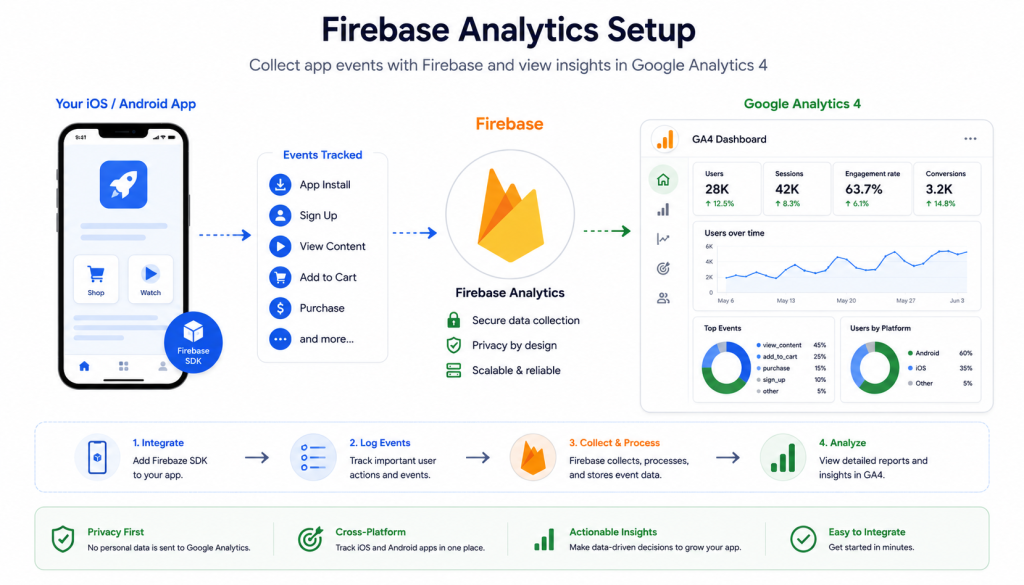
If you’re building a mobile app and not tracking user behavior, you’re flying blind. Firebase Analytics — now deeply integrated with Google Analytics 4 (GA4) — is one of the most powerful free tools available for mobile app tracking. But setting it up correctly is where most teams struggle.
This guide walks you through the complete Firebase Analytics setup for both iOS and Android apps — from SDK installation to GA4 integration, custom events, user properties, and common mistakes to avoid. This complete firebase analytics setup for mobile apps guide covers everything from SDK installation to GA4 integration.
In this guide, you’ll learn:
- What Firebase Analytics is and why it matters
- How to set up Firebase for iOS and Android
- How to configure custom events and user properties
- How to connect Firebase to GA4
- How to validate your tracking
- Common Firebase Analytics mistakes and how to fix them
Table of Contents
ToggleWhat Is Firebase Analytics and Why It Matters
Firebase Analytics (officially called Google Analytics for Firebase) is a free, unlimited app measurement solution provided by Google. It automatically collects user behavior data from your mobile app and integrates natively with Google Analytics 4.
Why use Firebase Analytics?
- Free with no data limits
- Auto-collects 20+ events out of the box
- Deep integration with GA4, BigQuery, and Google Ads
- Works on both iOS and Android
- Supports user properties, audiences, and funnel analysis
For mobile app teams, Firebase is often the foundation of their entire analytics stack — other tools like AppsFlyer, Adjust, or Amplitude sit on top of it.
Firebase vs Other Analytics Tools:
| Feature | Firebase Analytics | Amplitude | Mixpanel |
|---|---|---|---|
| Price | Free | Freemium | Freemium |
| Auto-events | Yes (20+) | No | No |
| GA4 Integration | Native | No | No |
| BigQuery Export | Yes | Paid | Paid |
| Attribution | Limited | No | No |
| Real-time | Yes | Yes | Yes |
How Firebase Analytics Works
Firebase Analytics works by embedding an SDK into your app. Once installed, it:
- Auto-collects predefined events (first_open, session_start, screen_view, etc.)
- Sends events to the Firebase console in real-time
- Syncs data with GA4 if linked
- Allows custom event tracking via SDK calls
- Supports user property assignment for segmentation
Data flow:
Mobile App → Firebase SDK → Firebase Console → GA4 → BigQueryStep 1 — Firebase Analytics Setup for Mobile Apps: Create a Project
Before installing the SDK, you need a Firebase project.
- Go to firebase.google.com
- Click “Get Started” → “Create a project”
- Enter your project name (e.g., “MyApp-Production”)
- Enable or disable Google Analytics (enable it — you’ll need it for GA4)
- Select or create a GA4 property
- Click “Create project”
Important: Create separate Firebase projects for development and production. Mixing them pollutes your data permanently.
Step 2 — Add Your App to Firebase
For Android:
- In Firebase Console → Click “Add app” → Select Android
- Enter your Android package name (e.g.,
com.yourcompany.appname) - Download
google-services.json - Place it in your app’s
/appdirectory - Add Firebase SDK to your
build.gradle
Project-level build.gradle:
gradle
buildscript {
  dependencies {
    classpath 'com.google.gms:google-services:4.4.1'
  }
}
App-level build.gradle:
gradle
plugins {
  id 'com.google.gms.google-services'
}

dependencies {
  implementation platform('com.google.firebase:firebase-bom:32.7.0')
  implementation 'com.google.firebase:firebase-analytics'
}
For iOS:
- In Firebase Console → Click “Add app” → Select iOS
- Enter your iOS Bundle ID (e.g.,
com.yourcompany.appname) - Download
GoogleService-Info.plist - Add it to your Xcode project root
- Install Firebase SDK via CocoaPods or Swift Package Manager
CocoaPods (Podfile):
ruby
pod 'Firebase/Analytics'Then run:
bash
pod installSwift Package Manager:
- In Xcode → File → Add Packages
- Enter:
https://github.com/firebase/firebase-ios-sdk - Select
FirebaseAnalytics
Step 3 — Initialize Firebase in Your App
Android (Kotlin):
kotlin
import com.google.firebase.Firebase
import com.google.firebase.analytics.FirebaseAnalytics
import com.google.firebase.analytics.analytics

class MainActivity : AppCompatActivity() {
    private lateinit var analytics: FirebaseAnalytics

    override fun onCreate(savedInstanceState: Bundle?) {
        super.onCreate(savedInstanceState)
        analytics = Firebase.analytics
    }
}
iOS (Swift):
swift
import Firebase

@main
struct MyApp: App {
    init() {
        FirebaseApp.configure()
    }

    var body: some Scene {
        WindowGroup {
            ContentView()
        }
    }
}
Firebase automatically starts collecting data once initialized. You don’t need to write additional code for auto-collected events.
Step 4 — Configure Custom Events
Firebase auto-collects basic events, but for meaningful insights you need custom events.
Auto-Collected Events (No Code Needed):
first_open— First app launchsession_start— New session beginsscreen_view— Screen navigationapp_update— App version updateos_update— OS version update
Recommended Custom Events:
Android (Kotlin):
kotlin
// User signs up
val bundle = Bundle()
bundle.putString(FirebaseAnalytics.Param.METHOD, "email")
analytics.logEvent(FirebaseAnalytics.Event.SIGN_UP, bundle)

// Purchase event
val purchaseBundle = Bundle()
purchaseBundle.putDouble(FirebaseAnalytics.Param.VALUE, 29.99)
purchaseBundle.putString(FirebaseAnalytics.Param.CURRENCY, "USD")
purchaseBundle.putString(FirebaseAnalytics.Param.TRANSACTION_ID, "txn_12345")
analytics.logEvent(FirebaseAnalytics.Event.PURCHASE, purchaseBundle)

// Custom event
val customBundle = Bundle()
customBundle.putString("plan_type", "premium")
customBundle.putString("source", "onboarding")
analytics.logEvent("subscription_started", customBundle)
iOS (Swift):
swift
// User signs up
Analytics.logEvent(AnalyticsEventSignUp, parameters: [
    AnalyticsParameterMethod: "email"
])

// Purchase event
Analytics.logEvent(AnalyticsEventPurchase, parameters: [
    AnalyticsParameterValue: 29.99,
    AnalyticsParameterCurrency: "USD",
    AnalyticsParameterTransactionID: "txn_12345"
])

// Custom event
Analytics.logEvent("subscription_started", parameters: [
    "plan_type": "premium",
    "source": "onboarding"
])
Event Naming Rules:
- Max 40 characters
- Only letters, numbers, underscores
- Cannot start with a number
- Avoid reserved prefixes:
firebase_,google_,ga_
Step 5 — Set User Properties
User properties let you segment your users by attributes — plan type, language, user tier, etc.
Android (Kotlin):
kotlin
analytics.setUserProperty("subscription_type", "premium")
analytics.setUserProperty("user_tier", "enterprise")
analytics.setUserId("user_12345")
iOS (Swift):
swift
Analytics.setUserProperty("premium", forName: "subscription_type")
Analytics.setUserProperty("enterprise", forName: "user_tier")
Analytics.setUserID("user_12345")
Important: Never send PII (personally identifiable information) like email or phone number as user properties. This violates Firebase ToS and GDPR.
Step 6 — Connect Firebase to GA4
This is where the real power comes in. Connecting Firebase to GA4 gives you funnel analysis, audiences, and Google Ads integration.
- Go to Firebase Console → Project Settings → Integrations
- Click “Google Analytics” → “Link”
- Select your existing GA4 property or create a new one
- Click “Enable Google Analytics”
Once linked:
- All Firebase events flow into GA4 automatically
- You can create audiences in GA4 based on Firebase events
- Google Ads campaigns can use these audiences for remarketing
GA4 Data Stream Verification:
- Go to GA4 → Admin → Data Streams
- You should see your iOS and Android app streams
- Check that data is flowing (may take 24-48 hours for full data)
Step 7 — Validate Your Firebase Setup
Never assume your tracking is working. Always validate.
Method 1 — Firebase DebugView:
Android:
bash
adb shell setprop debug.firebase.analytics.app com.yourpackage.nameiOS (Xcode): Add launch argument: -FIRAnalyticsDebugEnabled
Then go to Firebase Console → Analytics → DebugView — you’ll see events in real-time.
Method 2 — Firebase Analytics Dashboard:
- Go to Firebase Console → Analytics → Dashboard
- Check “Realtime” view
- Trigger events manually in your test device
Method 3 — GA4 DebugView:
- Go to GA4 → Configure → DebugView
- Same real-time event view, but inside GA4
Validation Checklist:
first_openevent fires on fresh installsession_startfires on app open- Custom events appear in DebugView
- User properties are set correctly
- Events appear in GA4 within 24 hours
- No duplicate events firing
Step 8 — Export to BigQuery (Optional but Recommended)
For large-scale apps or advanced analysis, export Firebase data to BigQuery.
- Firebase Console → Project Settings → Integrations → BigQuery
- Click “Link”
- Select your Google Cloud project
- Choose streaming export (real-time) or daily export
Why BigQuery:
- Unlimited raw event data
- SQL queries on your full dataset
- Connect to Looker Studio for custom dashboards
- No data sampling
Common Firebase Analytics Mistakes
Mistake 1 — Using the Same Project for Dev and Production
Never mix environments. Create separate Firebase projects. Otherwise your test events pollute production data permanently.
Mistake 2 — Not Setting User ID
Without setUserId(), you can’t track users across devices or sessions properly. Set it immediately after login.
Mistake 3 — Sending PII in Events
Sending emails, phone numbers, or names as event parameters violates GDPR and Firebase ToS. Use anonymous IDs only.
Mistake 4 — Too Many Custom Events
Firebase allows max 500 distinct event names per app. Plan your event taxonomy carefully. Don’t create a new event for every micro-action.
Mistake 5 — Not Validating with DebugView
Most teams assume tracking is working. Always validate with DebugView before going to production.
Mistake 6 — Ignoring Data Delays
Firebase Analytics has a 24-hour delay for most reports (except Realtime). Don’t panic if you don’t see data immediately.
Firebase Analytics + Mobile Attribution Stack
Firebase alone doesn’t give you full attribution. For a complete mobile measurement stack, you need:
| Tool | Purpose |
|---|---|
| Firebase Analytics | In-app behavior tracking |
| AppsFlyer / Adjust | Install attribution & campaign tracking |
| RevenueCat | Subscription revenue tracking |
| Amplitude / Mixpanel | Advanced product analytics |
| GA4 | Cross-platform reporting |
Firebase is the foundation — everything else connects to it or complements it.
FAQ
What is Firebase Analytics used for in mobile apps? Firebase Analytics is used to track user behavior inside mobile apps — events like sign-ups, purchases, screen views, and custom actions. It’s free, unlimited, and integrates natively with Google Analytics 4 (GA4).
Is Firebase Analytics free? Yes, Firebase Analytics is completely free with no event or user limits. BigQuery export may incur Google Cloud costs for large data volumes.
How long does Firebase Analytics data take to appear? Most Firebase Analytics reports update with a 24-48 hour delay. The Realtime report and DebugView show data instantly for testing purposes.
Can I use Firebase Analytics with AppsFlyer or Adjust? Yes. Firebase Analytics tracks in-app events while AppsFlyer or Adjust handles install attribution. They complement each other and can share event data via SDK integrations.
What is the difference between Firebase Analytics and GA4? Firebase Analytics is the mobile SDK that collects data. GA4 is the reporting interface. When linked, Firebase sends data to GA4 automatically, giving you web + app data in one place.
How do I track purchases in Firebase Analytics? Use the built-in purchase event with parameters: value, currency, and transaction_id. This event is recognized by GA4 and Google Ads automatically.
Does Firebase Analytics work without internet? Yes. Firebase SDK caches events locally when offline and uploads them when connectivity is restored. Following this firebase analytics setup for mobile apps guide will give your team accurate behavioral data from day one.