Meta CAPI Email Not Hashed: 5 Proven Steps to Fix It
Table of Contents
Toggleuser_data.em as a plain address such as jane@example.com. Meta expects em to be normalized (spaces trimmed, lowercase) and then hashed with SHA-256, which gives a 64 character hex string. Hash it on your side before the request leaves your server.This guide is for developers, marketers and agencies who send events to Meta through the Conversions API, from their own server, an automation tool or an MMP. Below you will find what Meta’s documentation requires, a wrong and a fixed payload, five common causes, code for Node.js and Python, and what to do if raw emails were already sent.
The button opens the Attribution Debugger with a sample event that has this exact problem. The check runs in your browser and nothing you paste is uploaded.What Meta’s documentation says about hashing em
In its reference for customer information parameters, Meta marks hashing as required forem and says its systems do not accept unhashed contact information such as names, emails and phone numbers, except for parameters it lists as not hashed. For email, Meta’s normalization rule is: trim leading and trailing spaces, then convert to lowercase. After that, hash the result with SHA-256.Meta’s pages show the same idea for the other common fields, each with its own normalization before hashing:| Parameter | Normalize first | Then |
|---|---|---|
em (email) | Trim spaces, lowercase | SHA-256 |
ph (phone) | Remove symbols, letters and leading zeros, and include the country code | SHA-256 |
fn, ln (first and last name) | Lowercase, no punctuation (Roman a to z is recommended, special characters in UTF-8) | SHA-256 |
client_ip_address must never be hashed, and it marks fields such as client_user_agent, fbc, fbp and ctwa_clid as “Do not hash.” Hashed fields such as em accept either one string or a list of strings.Meta also says its Business SDK hashes user data automatically. Its best practices page adds that if you are not planning to use the Business SDK, you need to implement hashing yourself.Sources: Meta, customer information parameters and Meta, Conversions API best practices.Why a raw email is a matching problem and a privacy problem
There are two separate costs, and the second one is the more serious.- Matching. Meta matches events to people using the hashed value. A plain address is not in the documented format, so it cannot do its job as a match key, and your Event Match Quality suffers.
- Privacy. A readable email address is personal data, and it is leaving your server inside a request body. Copies of that body can end up in server logs, proxy logs, error trackers, automation run histories and debug tools. Treat it as a privacy incident, not only a tracking bug.
5 common causes of an unhashed em value
- The hashing step was never written. Custom server code takes the email straight from the form, the database or the CRM and puts it into
user_data.em. - Hashing exists in one code path only. Purchase is hashed, but Lead, Registration or a custom event goes through another function that skips it.
- An automation or webhook passes the field through. A Zapier, Make or n8n scenario, or a CRM webhook, maps an
emailfield toemand sends it unchanged. - A sample payload went to production. A payload copied from a guide or a test run, with a real address in it, was left in the live request template.
- Someone else was assumed to hash it. Meta’s Business SDK hashes automatically, but a direct call to the API, a custom template or a server-side tag may not. Check the actual request body instead of assuming.
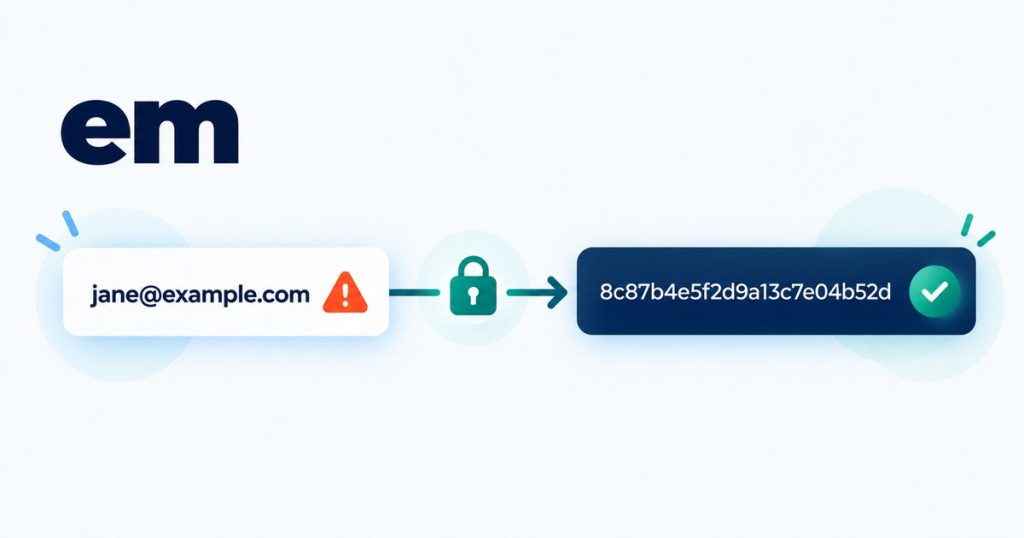
Wrong payload vs fixed payload
Here is a Purchase app event with a raw email in em. The example is trimmed to the fields that matter here. App events also need other fields, which the action_source guide covers.
{
  "data": [
    {
      "event_name": "Purchase",
      "event_time": 1761570000,
      "event_id": "order_10493",
      "action_source": "app",
      "user_data": {
        "em": "jane@example.com"
      },
      "custom_data": {
        "currency": "USD",
        "value": 29.99
      }
    }
  ]
}
And the fixed version, where the address was trimmed, lowercased and hashed with SHA-256 before sending:
{
  "data": [
    {
      "event_name": "Purchase",
      "event_time": 1761570000,
      "event_id": "order_10493",
      "action_source": "app",
      "user_data": {
        "em": "8c87b489ce35cf2e2f39f80e282cb2e804932a56a213983eeeb428407d43b52d"
      },
      "custom_data": {
        "currency": "USD",
        "value": 29.99
      }
    }
  ]
}
The address jane@example.com is made up. Never put real customer emails into examples, tickets or shared screenshots.
How to spot an unhashed email
- The value of
emcontains an @ sign. A hash never does. - The value is not exactly 64 characters. A SHA-256 hash in hex is 64 characters made of the digits 0 to 9 and the letters a to f.
- Search your request logs for an @ sign inside
user_data. If you find one, the raw value is also stored in that log.
The same check applies to ph, fn and ln. The debugger flags those fields too when they do not look like a SHA-256 hash.
How to fix it: normalize, hash, then send
- Take the email exactly as the customer entered it.
- Normalize it: trim leading and trailing spaces, then convert to lowercase.
- Hash the normalized value with SHA-256 and write the result as lowercase hex.
- Put the hex string into
user_data.em, either as one string or inside a list. - Do this in one shared function that every event type uses, so no code path can skip it.
Node.js:
import { createHash } from "node:crypto";

const HEX64 = /^[a-f0-9]{64}$/;

export function hashEmail(email) {
  const value = String(email ?? "").trim().toLowerCase();
  if (!value) return undefined;
  if (HEX64.test(value)) return value; // already a SHA-256 hex hash
  return createHash("sha256").update(value, "utf8").digest("hex");
}
Python:
import hashlib
import re

HEX64 = re.compile(r"^[a-f0-9]{64}$")

def hash_email(email):
    value = str(email or "").strip().lower()
    if not value:
        return None
    if HEX64.match(value):
        return value  # already a SHA-256 hex hash
    return hashlib.sha256(value.encode("utf-8")).hexdigest()
Both functions return the same hash for ” Jane@Example.com ” and for jane@example.com. If you send through a server-side Google Tag Manager tag, check whether that tag hashes user data for you, and confirm it by reading the request body it sends. Tags differ, so do not assume.
Two mistakes that look like a fix
- Double hashing. Hashing a value that is already a hash produces a different 64 character string. It looks correct, but it will not match the hash Meta works out from the real email. The guard in the code above stops this. This is a practical rule, not a quote from Meta.
- Hashing before normalizing. A hash of ” Jane@Example.com ” is not the hash of jane@example.com. Always trim and lowercase first, then hash.
What to do if raw emails were already sent
- Stop the leak first. Deploy the hashing fix, or pause the code path or automation that sends the raw value.
- Find where the raw value was stored. Check application logs, proxy or gateway logs, error trackers, serverless logs, automation run histories, tag manager debug views and any raw data in your MMP or CDP.
- Limit and clean up. Restrict access to those logs, and shorten retention or delete the entries according to your own data policy.
- Tell the person responsible for privacy in your company. They decide whether anything else is required. This is not legal advice.
- Add a guard. Reject any event where
emis not 64 hex characters before it is sent.
Check your own payload
Paste your payload into the Attribution Debugger and it will tell you whether em looks like a SHA-256 hash, and flag other problems in the same event. It finds and explains the problem, it does not change your payload. You can start from the sample first:
The check runs in your browser and nothing is uploaded. If the findings are more than you want to fix yourself, use the fix plan button under the report to send it to me in writing. For more fixes like this one, read the action_source missing guide or go back to the debug hub.
Frequently asked questions
Do I have to hash em for the Meta Conversions API?
Yes. Meta’s customer information parameters reference marks hashing as required for em, and says unhashed contact information is not accepted unless a parameter is listed as not hashed.
Does Meta hash the email for me?
Meta says its Business SDK hashes user data automatically. For a direct API call, Meta’s best practices page says to implement hashing yourself if you are not using the SDK. Check the request body that actually leaves your server.
Why is my Event Match Quality low?
Low match quality usually means Meta received too few customer information parameters, or received them in a form it cannot match. A raw email, a hash made before trimming and lowercasing, and a hash of a hash will all fail to match.
Do I hash before or after lowercasing?
After. Trim the spaces and convert to lowercase first, then hash the result with SHA-256.
What about hashing phone numbers?
Hashing is required for ph as well. Meta’s normalization is to remove symbols, letters and leading zeros and include the country code, then hash with SHA-256. For example, (650)555-1212 becomes 16505551212 before hashing.
Can I test this without sending real data?
Yes. Use made up addresses on example.com and paste the payload into the debugger, which runs in your browser. If you send a test request to Meta, add a test_event_code at the top level of the request, next to data, and remove it from your production payload.
Built by Al-Fahad Hridoy, an Attribution & Tracking Consultant who fixes Meta Conversions API, WhatsApp click-to-chat, AppsFlyer and Firebase tracking for apps and websites.