Adjust S2S Authentication Token Rejected: 5 Causes and a Quick Fix
Table of Contents
ToggleYour Adjust server-to-server events were recording fine, and now they are rejected with a message about a missing or wrong token. The Adjust S2S authentication token is a single header, and almost every rejection traces back to how that header is built or which token it carries. The tricky part is the response code, so start there before you touch the server code.
How the token is sent, and how to read the response
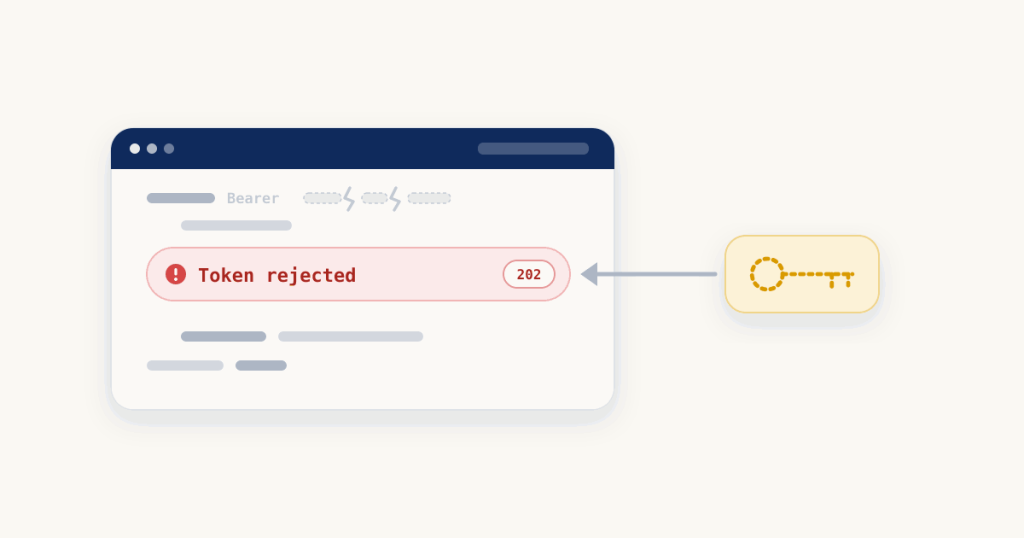
Each S2S request must carry a token generated in your Adjust dashboard, sent in the HTTP header as Authorization: Bearer <token>. Adjust returns one of four responses: 200 OK when the request is accepted, 202 Missing authentication token when no token was included, 202 Wrong authentication token when a token was sent but not recognized, and 401 Session failed when the request had insufficient authentication scopes. Only 200 OK means accepted.
1. The Authorization header is missing
This returns 202 Missing authentication token. The token was never added in your server code, or it was added but stripped on the way out by a proxy, gateway or SDK wrapper that rebuilds the request. Confirm it by logging the exact outgoing headers, not the headers you think you set. Fix: add the Authorization header to the request that actually leaves your server.
2. The header format is wrong
This usually returns 202 Wrong authentication token. The token is present but not in the shape Adjust expects: the Bearer prefix is missing, there are extra quotes or spaces around the value, or the token was put in a URL parameter instead of the header. Confirm it by comparing your header byte for byte with Authorization: Bearer <token>. Fix: send the raw token after Bearer in the header, with nothing added.
Check this example in the debugger
Every check runs in your browser.
3. The token is from another app, or was deleted or replaced
This returns 202 Wrong authentication token. Tokens are generated inside one selected app, so a token created for a different app will not be recognized here, and a token that was deleted or rotated in the dashboard stops working the moment it is replaced. Confirm it by checking the token value against the one shown under the correct app. Fix: use a current, active token created for the exact app you are sending events for.
4. S2S Security was switched on before the server was ready
If every request begins failing at the same moment, this is the usual cause. Before S2S authentication is activated, requests carrying invalid tokens are still accepted, so a broken header can sit unnoticed. The moment you activate it, requests that do not carry a valid token are rejected by the server, and all of them fail at once. Confirm it by checking whether the failures line up with when S2S Security was turned on. Fix: send a valid token from the server first, confirm a 200 OK, then leave S2S Security on.
5. The token does not have the needed scope
This is the 401 Session failed case, which Adjust describes as the request having insufficient authentication scopes. The token reached Adjust but is not authorised for what the request is doing. Confirm it by checking that the token you are using is the S2S Security token for this app and endpoint, not a token meant for something else. Fix: use a token with the right scope for the S2S endpoint.
Why a 202 can still mean rejected
A 202 normally signals that a request was accepted, which is why this error is so easy to miss. For Adjust S2S authentication, a missing or a wrong token both come back as 202, not as a 401 or 403. So checking only for a non-2xx status will let these failures through. Treat anything other than 200 OK as a rejection, and read the message text, not just the code.
The safe rollout order
Add the token in the dashboard, send it from your server and confirm you get 200 OK on live requests, and only then switch S2S Security on. Adjust’s own advice is to activate S2S authentication only after your developer has tested the token implementation, for exactly this reason: turning it on first is what makes every event fail together.
If the rejection is actually about the device identifier rather than the token, that is a different fix. More single error fixes are on the debug hub, and you can check a payload in the Mobile App Attribution Debugger. Adjust’s own reference is the S2S security documentation.
Frequently asked questions
Why is a 202 not a success for Adjust S2S?
Because a missing token and a wrong token both return 202 for Adjust S2S authentication, not a 4xx error. Only 200 OK means the request was accepted, so a 202 with a Missing or Wrong authentication token message is a rejection, not a pass.
Where do I create the S2S Security token?
In AppView, open All apps and select your app, go to the Protection tab, open S2S Security, and choose Add token. The token is generated inside that one app, so create it under the app you are actually sending events for.
Why did all my Adjust events start failing at once?
Most often because S2S Security was activated while the server was still sending an invalid or missing token. Before activation, invalid tokens are still accepted, so the problem is hidden until you switch it on and every request without a valid token is rejected together.