Table of Contents
ToggleHow to Set Up Branch Deep Links for iOS and Android Apps (2026)
Branch deep links setup is essential for any mobile app that wants to send users to the exact right screen – whether they’re coming from an ad, email, SMS, or social post.If you want users to land on the exact right screen inside your app — whether they’re coming from an ad, email, SMS, or social post — you need deep linking. And Branch is the most powerful deep linking platform available for mobile apps.
But setting up Branch correctly requires configuring multiple systems across iOS, Android, your dashboard, and your marketing tools. One wrong setting and your deep links silently fail.
This complete Branch deep link setup guide walks you through everything — from account creation to universal links, app links, deferred deep linking, and attribution tracking.
In this guide:
- What Branch does and why mobile apps need it
- How to create and configure your Branch account
- iOS Universal Links setup
- Android App Links setup
- Deferred deep linking
- Branch link configuration
- Attribution and analytics
- Common Branch setup mistakes
- How to validate your Branch setup
What Is Branch and Why Use It?
Branch is a mobile deep linking and attribution platform. It connects users to the exact right content inside your app — regardless of where they came from or whether they have the app installed.
What Branch does:
- Creates deep links that open specific screens inside your app
- Handles deferred deep linking — users who don’t have the app installed get redirected to the app store, then land on the right screen after install
- Tracks which campaigns, channels, and links are driving installs and engagement
- Supports web-to-app journeys, email deep links, QR codes, and smart banners
Why use Branch:
- Most powerful deep linking solution available
- Handles edge cases automatically — iOS, Android, web fallbacks
- Attribution built-in alongside deep linking
- Smart Banners for web-to-app conversion
- Supports all major marketing channels
Branch vs AppsFlyer OneLink:
| Feature | Branch | AppsFlyer OneLink |
|---|---|---|
| Deep linking | Best-in-class | Strong |
| Attribution | Good | Industry-leading |
| Smart Banners | ✅ Built-in | ✅ Available |
| Web-to-app | Excellent | Strong |
| Fraud protection | Basic | Protect360 |
| Pricing | Freemium | Premium |
| Setup complexity | Medium | Medium |
When to use Branch:
- Deep linking is your primary need
- You want web-to-app attribution
- You need QR code campaigns
- You’re running email or SMS deep link campaigns
When to use AppsFlyer OneLink instead:
- You’re already using AppsFlyer for attribution
- You need advanced fraud protection
- You need 10,000+ ad network integrations
Step 1 — Create Your Branch Account
- Go to branch.io
- Click “Get Started Free”
- Enter your app details
- Verify your email
- Log in to the Branch dashboard
Add your app:
- Dashboard → Account Settings → Apps
- Click “Add New App”
- Enter your app name
- Add your iOS Bundle ID and Android Package Name
- Add your App Store and Google Play URLs
Step 2 — Configure Your Branch Link Domain
Branch uses a custom link domain for your deep links. You can use Branch’s default domain or a custom domain.
Default domain: yourapp.app.link
Custom domain (recommended):
- Dashboard → Link Settings → Custom Link Domain
- Enter your domain (e.g.,
links.yourapp.com) - Add the required DNS records to your domain provider
- Verify the domain
A custom domain looks more professional and improves click-through rates.
Step 3 — iOS Universal Links Setup
Universal Links allow Branch deep links to open your app directly — without going through Safari first.
Configure Associated Domains in Xcode:
- Open your project in Xcode
- Select your target → Signing & Capabilities
- Click “+” → Add “Associated Domains”
- Add these domains:
applinks:yourapp.app.link
applinks:yourapp-alternate.app.link
If using a custom domain:
applinks:links.yourapp.comAdd Branch to Info.plist:
<key>branch_key</key>
<string>key_live_YOUR_BRANCH_KEY</string>
<key>branch_universal_link_domains</key>
<array>
    <string>yourapp.app.link</string>
    <string>yourapp-alternate.app.link</string>
</array>
Install Branch iOS SDK:
CocoaPods:
pod 'Branch'Swift Package Manager:
- Xcode → File → Add Packages
- Enter:
https://github.com/BranchMetrics/ios-branch-sdk-spm
Initialize Branch iOS SDK:
import Branch

@main
struct MyApp: App {
    init() {
        Branch.getInstance().initSession(launchOptions: nil) { params, error in
            if let params = params as? [String: Any] {
                // Handle deep link data
                if let screenName = params["screen"] as? String {
                    // Navigate to the correct screen
                    print("Deep link to: \(screenName)")
                }
            }
        }
    }

    var body: some Scene {
        WindowGroup {
            ContentView()
                .onOpenURL { url in
                    Branch.getInstance().handleDeepLink(url)
                }
                .onContinueUserActivity(NSUserActivityTypeBrowsingWeb) { activity in
                    Branch.getInstance().continue(activity)
                }
        }
    }
}
Step 4 — Android App Links Setup
App Links allow Branch deep links to open your Android app directly.
Install Branch Android SDK:
App-level build.gradle:
dependencies {
    implementation 'io.branch.sdk.android:library:5.+'
}
Add to AndroidManifest.xml:
<application>
    <meta-data
        android:name="io.branch.sdk.BranchKey"
        android:value="key_live_YOUR_BRANCH_KEY" />

    <activity android:name=".MainActivity">
        <!-- App Links intent filter -->
        <intent-filter android:autoVerify="true">
            <action android:name="android.intent.action.VIEW" />
            <category android:name="android.intent.category.DEFAULT" />
            <category android:name="android.intent.category.BROWSABLE" />
            <data
                android:scheme="https"
                android:host="yourapp.app.link" />
        </intent-filter>

        <!-- URI scheme fallback -->
        <intent-filter>
            <action android:name="android.intent.action.VIEW" />
            <category android:name="android.intent.category.DEFAULT" />
            <category android:name="android.intent.category.BROWSABLE" />
            <data
                android:scheme="yourapp"
                android:host="open" />
        </intent-filter>
    </activity>
</application>
Initialize Branch Android SDK:
import io.branch.referral.Branch

class MyApplication : Application() {
    override fun onCreate() {
        super.onCreate()
        Branch.getAutoInstance(this)
    }
}

class MainActivity : AppCompatActivity() {
    override fun onStart() {
        super.onStart()
        Branch.sessionBuilder(this)
            .withCallback { referringParams, error ->
                if (error == null && referringParams != null) {
                    // Handle deep link data
                    val screenName = referringParams.getString("screen")
                    if (screenName != null) {
                        // Navigate to the correct screen
                    }
                }
            }
            .withData(intent.data)
            .init()
    }

    override fun onNewIntent(intent: Intent?) {
        super.onNewIntent(intent)
        setIntent(intent)
        Branch.sessionBuilder(this).reInit()
    }
}
Step 5 — Configure the assetlinks.json File (Android)
For App Links to work on Android, you need to host a assetlinks.json file on your domain.
File location: https://yourapp.com/.well-known/assetlinks.json
File content:
[{
    "relation": ["delegate_permission/common.handle_all_urls"],
    "target": {
        "namespace": "android_app",
        "package_name": "com.yourcompany.appname",
        "sha256_cert_fingerprints": [
            "YOUR_SHA256_FINGERPRINT"
        ]
    }
}]
Get your SHA256 fingerprint:
keytool -list -v -keystore your-release-key.jks -alias your-key-aliasBranch also provides its own assetlinks.json hosting — you can add your app’s fingerprint in the Branch dashboard under Link Settings.
Step 6 — Create Your First Branch Link
- Branch Dashboard → Quick Links
- Click “Create Link”
- Configure:
Basic settings:
- Link name: e.g., “Summer Campaign Homepage”
- Redirect: your app’s homepage or specific screen
Deep link data: Add key-value pairs that your app will read:
screen: product_detail
product_id: 12345
campaign: summer_sale
OG tags (for social sharing):
- Title: “Check out this product”
- Description: “Limited time offer”
- Image URL: your product image
- Click “Create Link”
Your link will look like: https://yourapp.app.link/summer-campaign
Step 7 — Implement Deferred Deep Linking
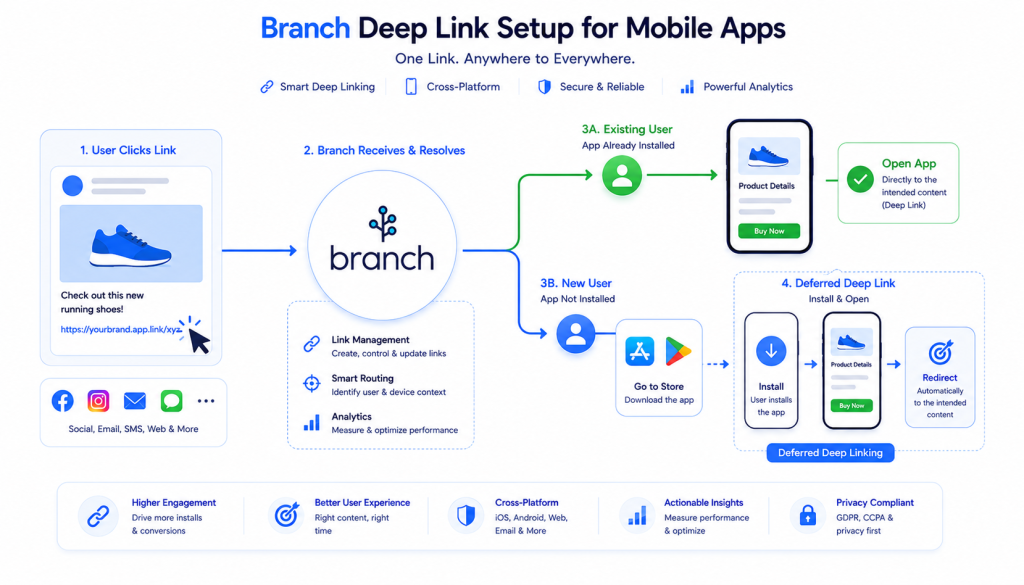
Deferred deep linking is Branch’s most powerful feature. When a user clicks a Branch link but doesn’t have the app installed:
- User clicks the Branch link
- Branch redirects to the App Store or Google Play
- User installs the app
- On first launch, Branch retrieves the original link data
- App navigates to the correct screen
This works automatically with Branch SDK initialized correctly. The key is reading the params in your session callback:
// iOS — read deferred deep link data
Branch.getInstance().initSession(launchOptions: nil) { params, error in
    guard let params = params as? [String: Any], error == nil else { return }

    // These params come from the original link — even after fresh install
    let screen = params["screen"] as? String
    let productId = params["product_id"] as? String
    let campaign = params["campaign"] as? String

    // Navigate based on deep link data
    if let screen = screen {
        NavigationManager.navigate(to: screen, productId: productId)
    }
}// Android — read deferred deep link data
Branch.sessionBuilder(this)
.withCallback { referringParams, error ->
if (error == null && referringParams != null) {
val screen = referringParams.optString("screen")
val productId = referringParams.optString("product_id")
// Navigate based on deep link data
if (screen.isNotEmpty()) {
NavigationManager.navigate(screen, productId)
}
}
}
.withData(intent?.data)
.init()Step 8 — Set Up Smart Banners
Branch Smart Banners show a banner on your mobile website that encourages users to open the app or install it.
- Branch Dashboard → Web → Smart Banner
- Configure:
- Banner title and description
- App icon
- CTA button text (“Open App” or “Install App”)
- Deep link data to pass to the app
- Add the Branch Web SDK to your website:
<script>
    (function(b,r,a,n,c,h,_,s,d,k){
        if(!b[n]||!b[n]._q){
            for(;s<_.length;)c(h,_[s++]);
            d=r.createElement(a);
            d.async=1;
            d.src="https://cdn.branch.io/branch-latest.min.js";
            k=r.getElementsByTagName(a)[0];
            k.parentNode.insertBefore(d,k);
            b[n]=h
        }
    })(window,document,"script","branch",function(b,r){
        b[r]=function(){b._q.push([r,arguments])}
    },{"_q":[],"_v":1},"addListener applyCode autoAppIndex banner closeBanner closeJourney creditHistory credits data deepview deepviewCta first getCode init link logout redeem referrals removeListener sendSMS setBranchViewData setIdentity track validateCode trackCommerceEvent logEvent disableTracking".split(" "), 0);

    branch.init('YOUR_BRANCH_KEY');
</script>
Step 9 — Attribution Tracking with Branch
Branch tracks attribution automatically for all links created in the dashboard.
View attribution data:
- Branch Dashboard → Analytics
- Filter by channel, campaign, or link
- See installs, opens, and custom events
Track custom events:
// iOS
BranchEvent.customEvent(withName: "purchase")
    .addCustomProperty("revenue", value: "29.99")
    .addCustomProperty("currency", value: "USD")
.logEvent()// Android
BranchEvent("purchase")
.addCustomProperty("revenue", "29.99")
.addCustomProperty("currency", "USD")
.logEvent(context)Connect Branch with your MMP:
If you’re using AppsFlyer or Adjust alongside Branch, you can pass attribution data between them:
// Pass AppsFlyer attribution to Branch
let branchEvent = BranchEvent.customEvent(withName: "install")
branchEvent.addCustomProperty("af_channel", value: appsFlyer_channel)
branchEvent.logEvent()
Common Branch Setup Mistakes
Mistake 1 — Not Adding All Associated Domains
Branch requires both the primary and alternate domains in Associated Domains:
applinks:yourapp.app.link
applinks:yourapp-alternate.app.link
Missing the alternate domain breaks Universal Links on iOS.
Mistake 2 — Wrong assetlinks.json Fingerprint
Using a debug keystore fingerprint in production breaks Android App Links. Always use your release keystore fingerprint.
Mistake 3 — Not Handling Deep Links in onNewIntent
On Android, if your app is already running when a deep link is clicked, the link data comes through onNewIntent — not onCreate. Always implement both.
Mistake 4 — Not Testing Deferred Deep Linking
Most teams only test direct deep links. Always test the deferred scenario — uninstall the app, click a Branch link, install the app, and verify the correct screen opens.
Mistake 5 — Missing URI Scheme Fallback
Universal Links and App Links can fail in some scenarios (email clients, certain browsers). Always include a URI scheme as fallback:
yourapp://open?screen=product&id=12345How to Validate Your Branch Setup
Method 1 — Branch Dashboard Live View:
- Dashboard → Liveview
- Trigger a deep link on your test device
- Verify the event appears in real-time
Method 2 — Test Deep Link Tool:
- Dashboard → Testing → Deep Link Tester
- Enter your Branch link
- Branch tests iOS and Android behavior automatically
Method 3 — Manual Testing:
Test Universal Links (iOS):
- Send the Branch link via Notes app
- Long press the link
- “Open in [Your App]” should appear
Test App Links (Android):
adb shell am start -W -a android.intent.action.VIEW -d "https://yourapp.app.link/test-link" com.yourpackage.nameValidation Checklist:
- Universal Links open app directly on iOS (not through Safari)
- App Links open app directly on Android
- Deferred deep link delivers correct params after fresh install
- URI scheme fallback works when Universal/App Links fail
- Smart Banner shows on mobile website
- Attribution data appears in Branch dashboard
- Custom events tracking correctly
FAQ
What is deferred deep linking? Deferred deep linking sends users to the correct screen inside an app even if they don’t have the app installed. The user clicks a link, gets redirected to the app store, installs the app, and on first launch the app reads the original link data and navigates to the correct screen.
Do I need Branch if I already use AppsFlyer? Not necessarily. AppsFlyer OneLink provides deep linking alongside attribution. Branch is a better choice if deep linking is your primary need and you want more advanced web-to-app journey features. If you’re already set up with AppsFlyer, OneLink may be sufficient.
Is Branch free? Branch offers a free tier with core deep linking features. Paid plans unlock advanced analytics, custom domains, and higher link volumes. For most early-stage apps, the free tier is sufficient.
How do Branch links work without the app installed? Branch detects whether the app is installed. If not, it redirects to the App Store or Google Play. After install, Branch retrieves the original link parameters on first launch — this is deferred deep linking.
Can Branch track attribution like AppsFlyer or Adjust? Branch has built-in attribution, but it’s not as comprehensive as dedicated MMPs like AppsFlyer or Adjust. Branch is best used for deep linking with basic attribution. For advanced attribution, use Branch alongside AppsFlyer or Adjust.
What is the difference between Universal Links and deep links? A deep link is any link that opens a specific screen inside an app. Universal Links is Apple’s implementation that allows HTTPS links to open apps directly — without going through Safari. Branch uses Universal Links on iOS and App Links on Android for the best user experience.
How do I test Branch deep links? Use Branch’s Live View in the dashboard to see real-time link activity, use the Deep Link Tester tool in the Branch dashboard, or manually test by clicking links on a physical device.
For full setup details, visit the official Branch documentation.